
Where do I manage accounts?
Go to Marketing > Connected Accounts. This screen separates connections into tabs for Social Accounts, Ad Accounts, Tracking Pixels, and Product Catalogs. Selecting the proper category prevents troubleshooting advertising issues inside organic publishing settings.
Steps to connect and verify accounts
- Confirm your active store.
- Choose the relevant connection tab and locate your platform.
- Click Connect Account or Manage Connection.
- Complete official authorization using credentials with administrative access, verifying the selected page or business asset before confirming.
- Return to Mollkom, refresh account status, and test the feature you plan to use.
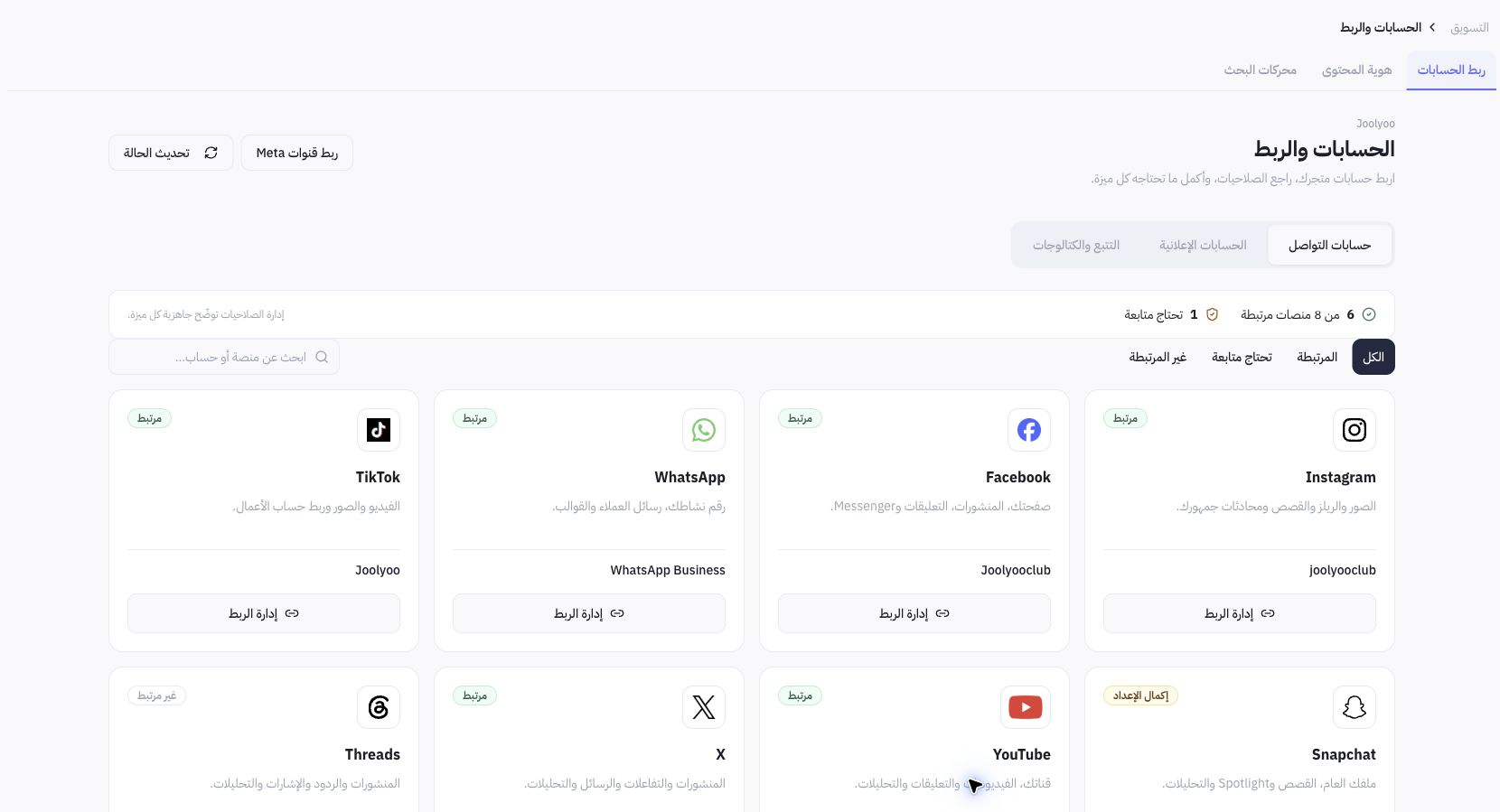
Example from live connected accounts
Joolyoo showed some platforms fully connected, others requiring further setup, and Threads listed as disconnected. Each platform’s readiness is evaluated independently. Do not assume your store matches Joolyoo's configuration; open your own account cards to confirm specific profile handles.
What should I check for Meta connections?
Verify the connected Facebook Page and linked Instagram Professional account. Double-check the selected page name; changing it redirects associated publishing and data flows. Granting organic posting permissions does not automatically qualify your assets for paid ads, commerce catalogs, or direct messaging protocols. Review individual feature requirements under Manage Connection.
Why does an account show connected while a feature fails?
The feature may require additional scope permissions, pending partner onboarding, or a renewed access token. Review the displayed status message before reconnecting. Never share access tokens or security keys with support agents, and avoid disconnecting profiles linked to active scheduled posts without assessing potential interruptions.