
Before you begin
Sign in with your authorized account. If you manage multiple stores, click the store switcher and verify the name and logo before reviewing metrics or editing data. Changing stores switches your entire workspace context; similar store names alone are not enough to confirm you are in the right store.
How do I find the section I need?
Home brings together key store metrics and action items that require attention. Products, Orders, and Customers are accessible directly from the main menu. Marketing consolidates campaigns, content, calendar, performance, connected accounts, and integrations. Store Manager includes the AI Assistant, automated designer, and design history. Storefront covers themes, banners, images, pages, and localization. Finance manages payments, invoices, reports, plans, and AI credits, while Operations handles warehouses, delivery, POS, and categories.
How should I structure my daily routine?
Review action items on Home and open the relevant page. Always set your reporting timeframe before comparing performance numbers. Check Orders to monitor fulfillment, review Products for low-stock alerts, and open your Marketing Calendar to confirm scheduled posts. A shortcut card does not mean the task is completed; open the destination and confirm the status.
Example from Joolyoo
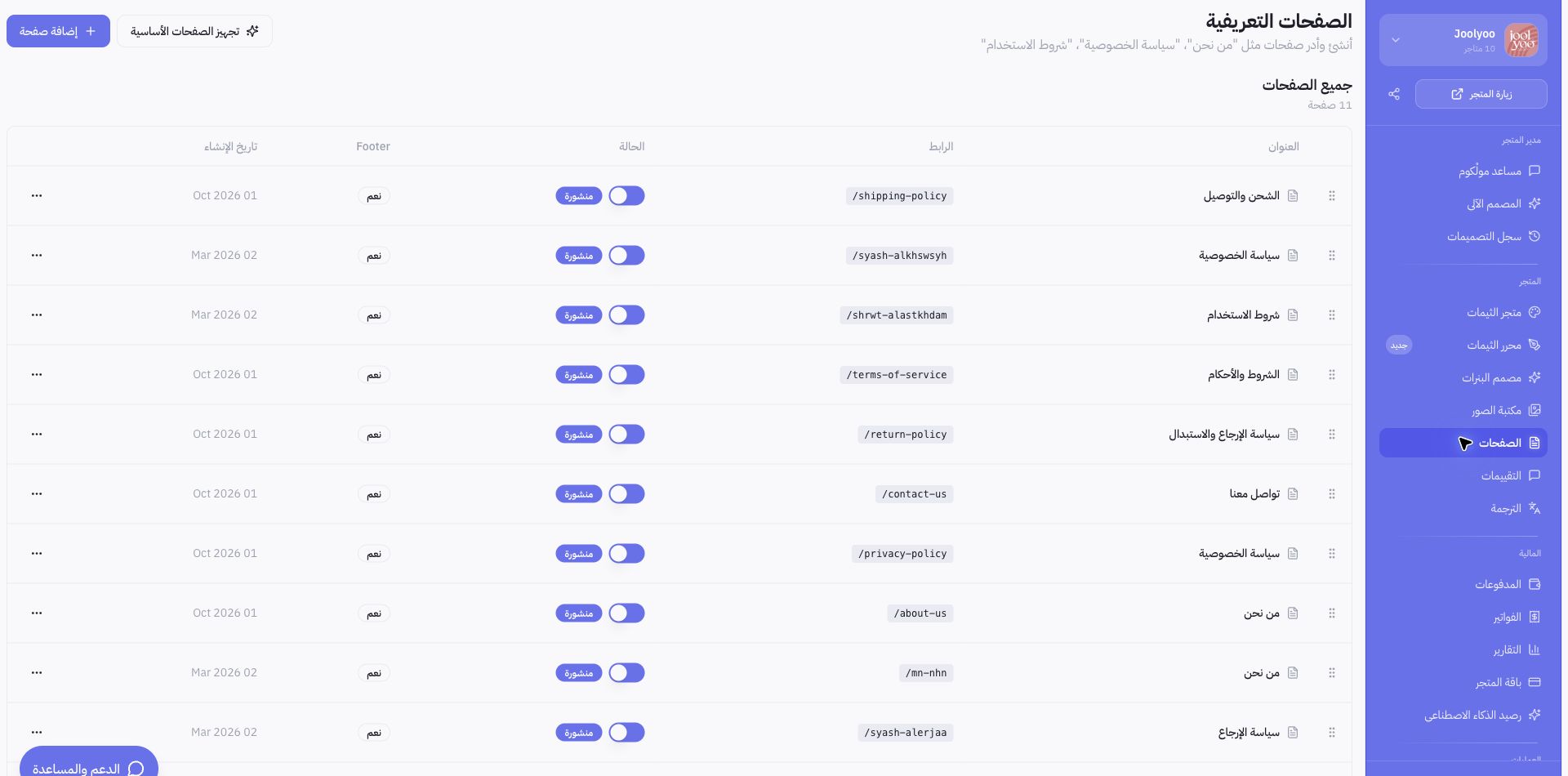
While inspecting the Joolyoo store, we verified the name in the store switcher before opening Pages and Products. The accompanying screenshot displays page management within Mollkom's live dashboard. Joolyoo is Mollkom's internal pilot store; this screenshot illustrates navigation flow and is not an independent customer testimonial.
What should I do if a section isn't showing up?
Available sections vary depending on team member permissions or account tier. Confirm your active store, then ask the store owner to review your role permissions, or reach out via Support & Help. Provide the page name and an explanation of the issue without including passwords or payment details.