
When should I perform this check?
If an account shows as connected but publishing, messaging, or analytics fail to work, open Accounts & Connections. You can also access this via Social Accounts in Settings. A general "Connected" status does not reflect individual service permissions.
Steps to review permissions
- Select Social Accounts, then choose the required platform.
- Open Connection Management and verify the account name and linked page.
- Review authorization expiry dates and feature availability.
- Run a live permissions check whenever you need an updated reading.
- If re-authorization or additional scopes are required, verify the account and requested permissions in the official provider flow before confirming.
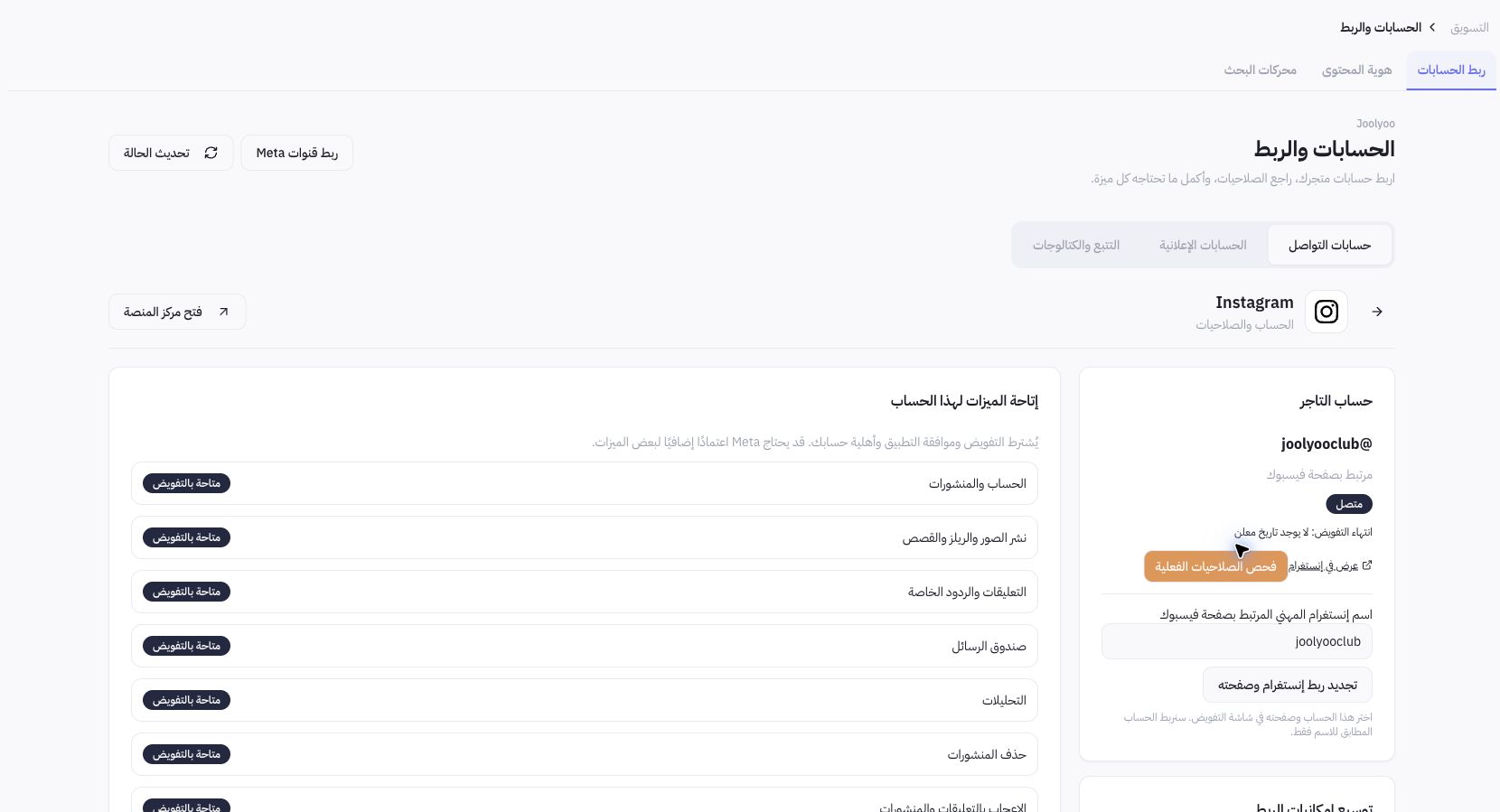
Example from Joolyoo
The Instagram page displays publishing, messaging, analytics, and other features separately, noting that certain capabilities require specific authorization, account eligibility, or provider approval. Do not assume a "Connected" status guarantees every content type can be published.
What should I verify before renewing permissions?
Ensure you select the professional account and the matching Facebook Page whenever required by the workflow. Review scheduled tasks and the intended scope of additional permissions. Do not disconnect an account or revoke an active authorization just to test a button in a guide.
How do I verify after setup?
Return to account details and verify the specific status for the desired feature. Completing the authorization screen does not automatically mean app approval or account eligibility is finalized. When contacting support, provide the error description and timestamp, but never share authorization tokens or secret keys.