
Where do I find my Google catalog?
Go to Sales Portals & Channels, or Marketing & Sales Channels from Settings, then open the Google Merchant Center card. This hub brings together an overview, diagnostics, data feeds, and policies, alongside active product statuses.
Steps to review products
- Confirm the store name and connected account within your dashboard.
- Open Overview & Diagnostics to check accepted, in-review, and rejected items.
- Review any account issues flagged in the latest scan.
- Open the product list, filter by status, and select the item you want to inspect.
- Match the reported issue against price, availability, image, link, and policy requirements before resyncing if needed.
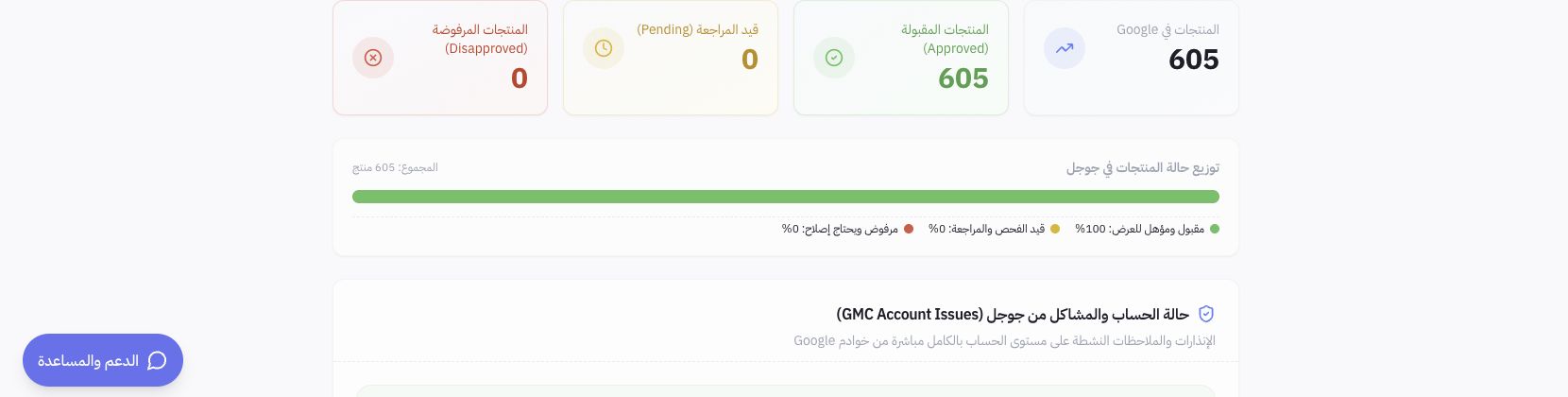
Example from Joolyoo
The latest scan in the dashboard reported 605 accepted products. This count reflects items within the Google catalog at that specific time and does not necessarily equal your store's total inventory or impression volume. An approved product is eligible based on account standing, but approval does not guarantee views, clicks, or sales.
How do I resolve discrepancies in item counts?
Compare product catalog scope, language, target country, feed status, and the last sync timestamp. A product may exist in Mollkom while still processing on Google's end. Always rely on the specific product status and error message instead of resyncing the entire catalog without diagnosing.
Does syncing launch an ad campaign?
Syncing your catalog does not launch a paid ad campaign. Visit Google Merchant Center directly via the official link if you need source-level diagnostics, and manage ads through their dedicated accounts and workflows. A dashboard without alerts does not guarantee that new issues will not arise later.