
What does the AI Designer generate?
The automated designer reviews your catalog and categories to assemble a complete storefront layout with sections, copy, promotional banners, and campaign modules tailored to your catalog size. A boutique catalog requires a cohesive single-page journey, while a large catalog needs clear navigation to surface collections. The result is a full storefront experience, not just a standalone banner image.
What are the prerequisites before running the designer?
Verify product titles, assigned categories, and ready-to-use photography. Physical merchandise campaigns require suitable Studio-quality imagery; raw phone snapshots or unedited lifestyle photos cannot automatically substitute for studio shots. If imagery is incomplete, update the product or its background intake task first. Verify available credits and estimated generation costs before initiating a new run.
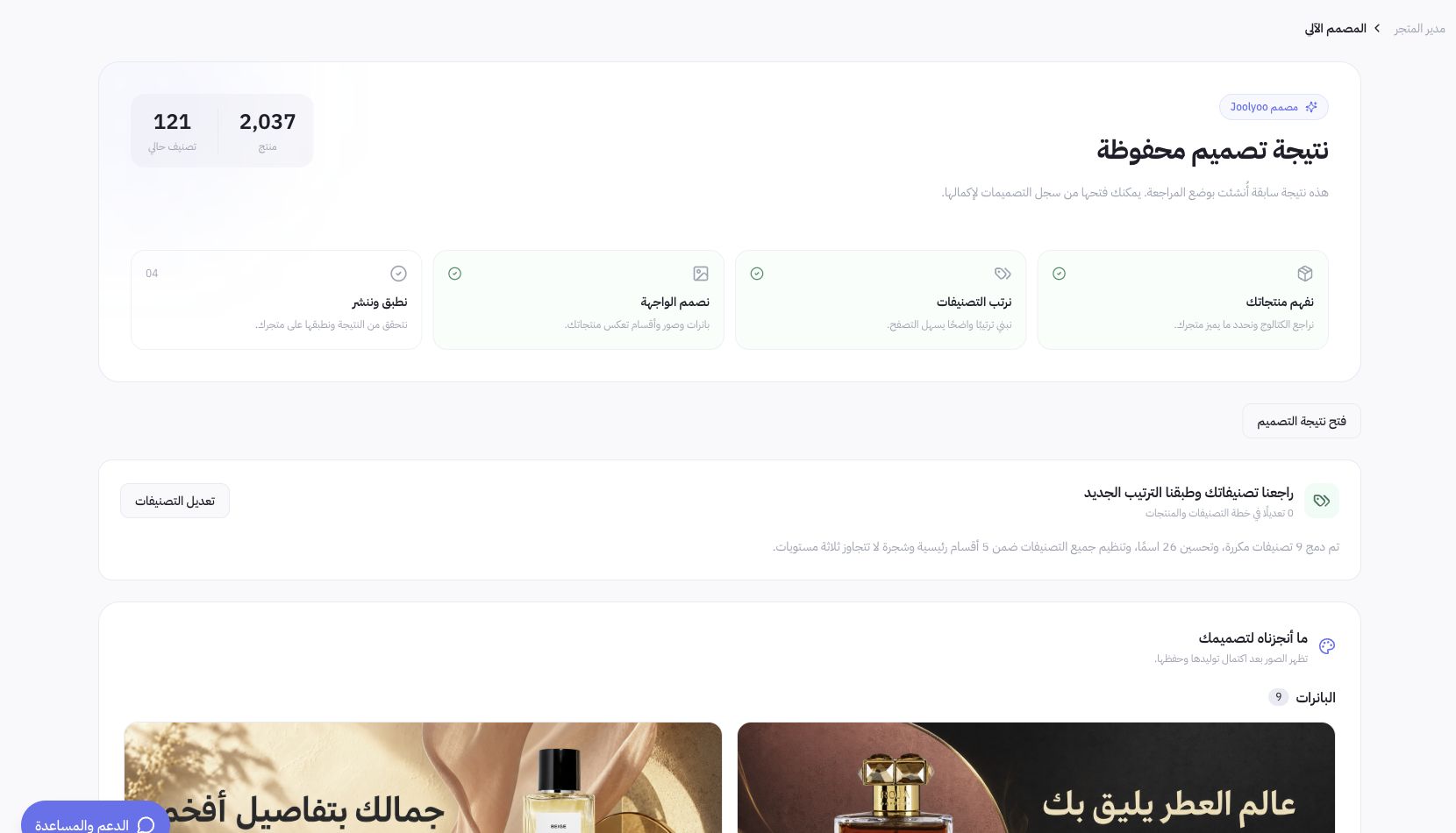
How do I review the design proposal?
Open the automated designer from Store Manager, then review your selected style and the saved output. Review mode requires your explicit approval, whereas an explicitly selected automated mode executes directly through the approved publishing workflow. Check your copy, product titles, headlines, and buttons, ensuring that imagery accurately reflects your store's inventory, typography remains legible, and visuals are not awkwardly cropped.
How do I verify publishing?
Completing generation or saving a layout does not mean it is published. Check the current version and open your public store link once publishing succeeds. Verify section order, categories, and links across both mobile and desktop views. A failed attempt does not warrant deleting your live storefront or swapping a campaign banner with a standard product image.
What should I do if a task fails?
Keep your task reference handy, then inspect the failure reason and saved output before re-running it. You can often adjust or repair specific parts of the proposal while keeping the valid sections intact. If the current design is approved but the store remains offline, check the launch status on the home dashboard instead of assuming you need to pay for another design run.