
Before generating pages
Confirm that your store name, business description, contact channels, and active catalog are up to date. Prepare your actual operating policies, such as return windows and customer support details. Do not commit to timelines or guarantees merely because they appeared in suggested draft copy, and do not treat AI-generated text as guaranteed legal compliance.
How do I generate essential pages in bulk?
Go to Pages under Storefront, then select Generate Essential Pages. This flow drafts missing pages—including About Us, Privacy Policy, Terms of Service, Refund Policy, Contact Us, and FAQs—saving them as drafts. It will not overwrite existing pages or publish content automatically. Estimated AI credits are reserved and reconciled based on actual usage; check the saved draft if your connection drops.
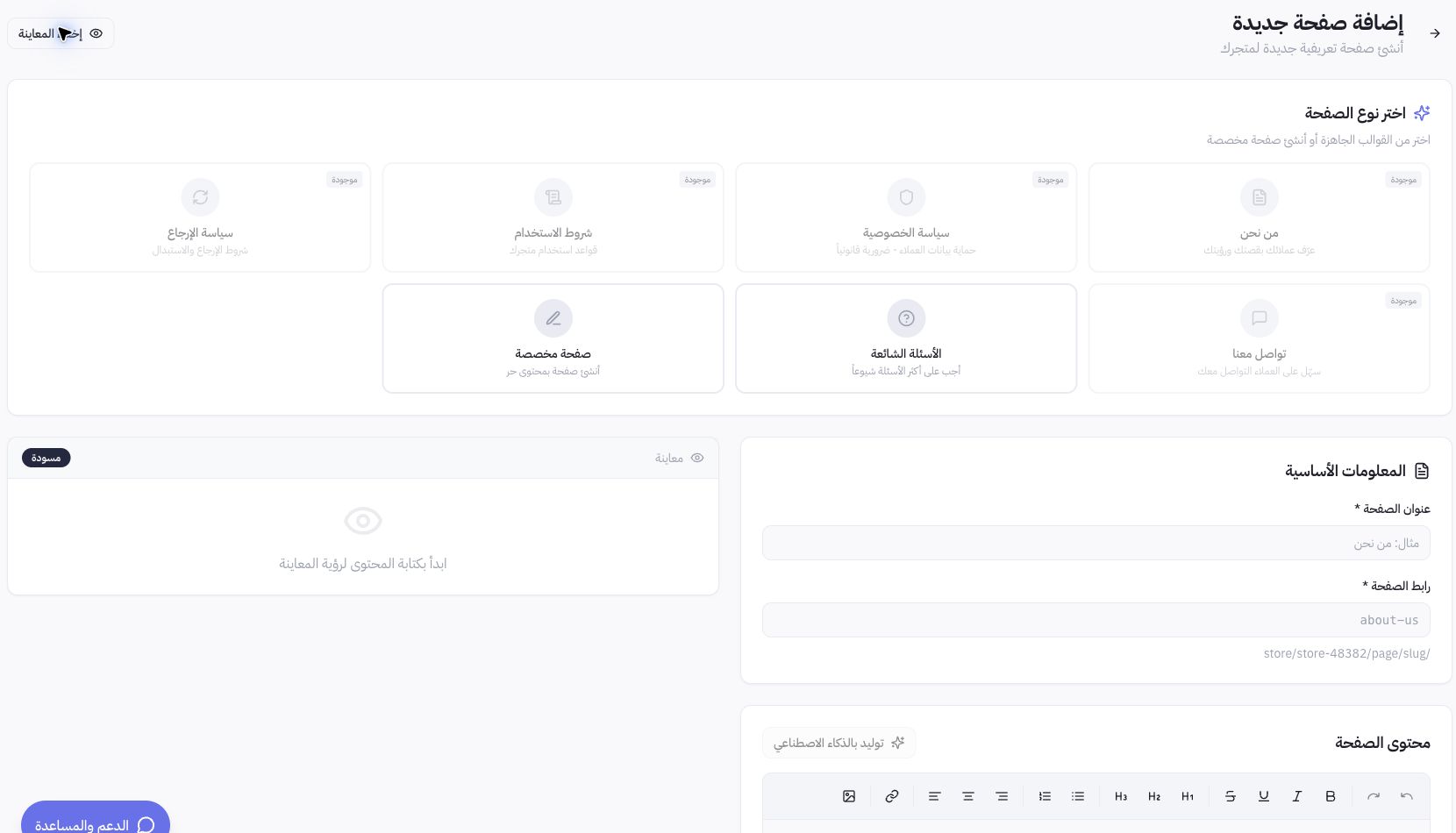
How do I create a single page?
Click Add Page, then select the appropriate page template or Custom Page. Enter a clear page title and clean URL slug, then write your content or use AI generation where available. Complete any visible required fields rather than leaving placeholders. Add an SEO title and meta description that accurately summarize the content, then save as a draft for review.
What is the difference between publishing a page and displaying it in the footer?
Publishing makes a page live to visitors, while Show in Store Footer controls whether its link appears in the storefront footer. Display order determines the menu sequence, with lower numbers appearing first. After approving content, check the live page URL and verify footer display on mobile. A table row in the dashboard alone does not prove the link is visible to customers.
Practical example: what should I check?
In the Joolyoo dashboard, we reviewed the published pages list and the Add Page form without making changes during capture. Watch out for duplicate titles and URLs before adding another About Us or Privacy Policy. If a page already exists, open it to make updates instead of duplicating it. Fill in any missing required fields before publishing.