
How do I get started?
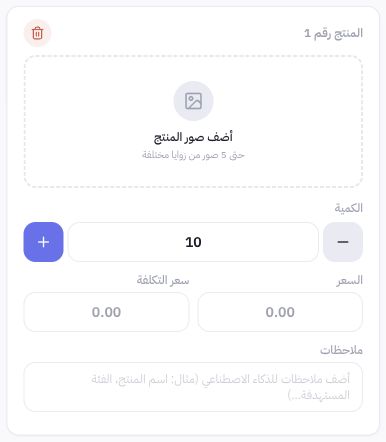
From Products, select Add via AI. This opens dedicated product intake cards, each accepting up to 5 photos from various angles. Group images belonging to the same SKU together, using original imagery that clearly showcases packaging, barcodes, labels, and product details.
Steps to Set Up a Product Card
- Add product photos to its card.
- Enter the accurate quantity, sale price, and cost price.
- Add notes clarifying details not visible in photos without inventing specifications.
- Add another card if you have a different product.
- Review the cards and displayed usage before starting execution from your balance.
Practical Example
If you are adding a perfume from a catalog similar to Joolyoo, include the front, back, and packaging photos in a single card. Do not rely on photos to guess price or stock. Specify the volume exactly as documented on the product, and review the resulting name, description, and fields after processing.
How do I track status?
Monitor the saved task and each product's status. Pending funding, processing, review, and photo completion are distinct stages. A product might be complete with enrichment notes, or waiting for studio image recovery. The presence of an uploaded photo alone does not mean the product is published.
What should I do if there is a delay?
Open the task itself and check the reference, error, and reserved balance before uploading again. Do not re-enter or pay repeatedly to check progress. If the outcome is inconclusive, request a review of the current task to avoid duplicate products or repeated deductions.