
What does the library contain?
Open the Photo Library under Store. It consolidates product photos, assets, studio shots, generated images, banners, uploads, and theme/brand graphics. It lets you reuse saved assets rather than requesting new generation each time.
How do I search for an image?
- Enter the product or image name in the search bar.
- Select the appropriate type from the Image Type filter.
- Open the desired image and inspect its content and quality.
- Use it directly from your current design tool, or head to the Banner Designer.
- If uploading a new image, confirm the upload finishes and shows up in the library.
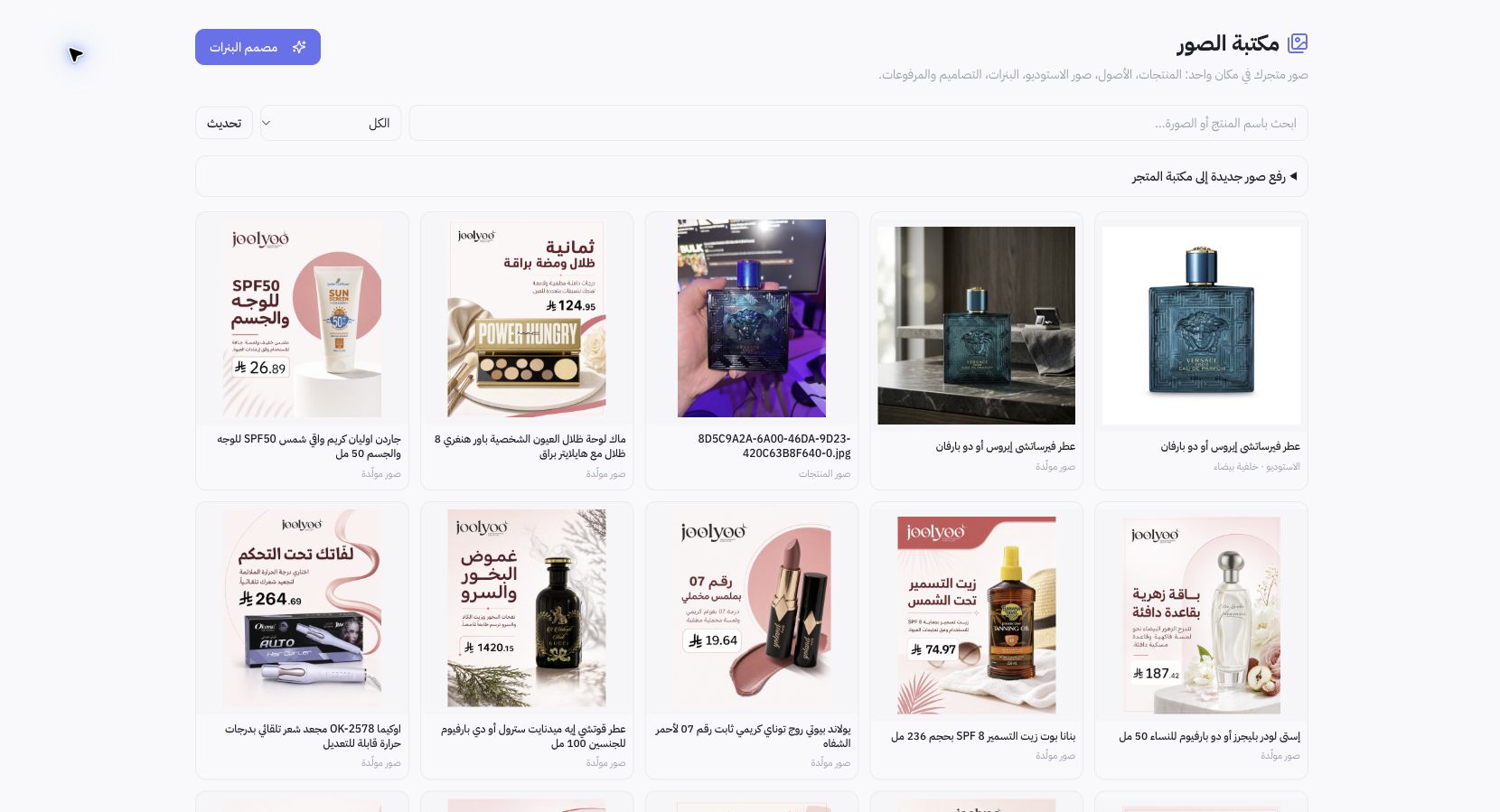
Example from Joolyoo
Both studio shots and generated images for the same product appear in the library. A clean white background works well for clear packaging display, while a lifestyle image suits marketing assets. Having multiple variations does not mean every version works as a main photo or fits every aspect ratio.
What should I check before using an asset?
Match the packaging, color, size, and labeling with the physical product. Check edges, text, and proportions; AI-generated outputs may need touch-ups. Avoid stretching an image to fit an incompatible aspect ratio, and select an asset tailored to its display placement.
Does saving an image publish it?
No. The library only stores the asset; featuring it in a theme or post requires selecting, saving, and publishing separately. If a recent image does not show up, verify your filter type and the original task, then refresh the library before re-generating.