
Where do I start?
Open the Theme Store from the Store section. The page displays your published design and version number, followed by the Discover and My Themes tabs. Choosing the right theme begins with evaluating your catalog, copy length, product photography, and active languages.
Steps to Evaluate a Theme
- Search for a theme or filter categories based on your needs.
- Open the full preview or live preview.
- Inspect the homepage, product page, category view, and cart on mobile.
- Install the chosen theme according to its status and terms.
- Customize it in the editor, review the draft, and publish once ready.
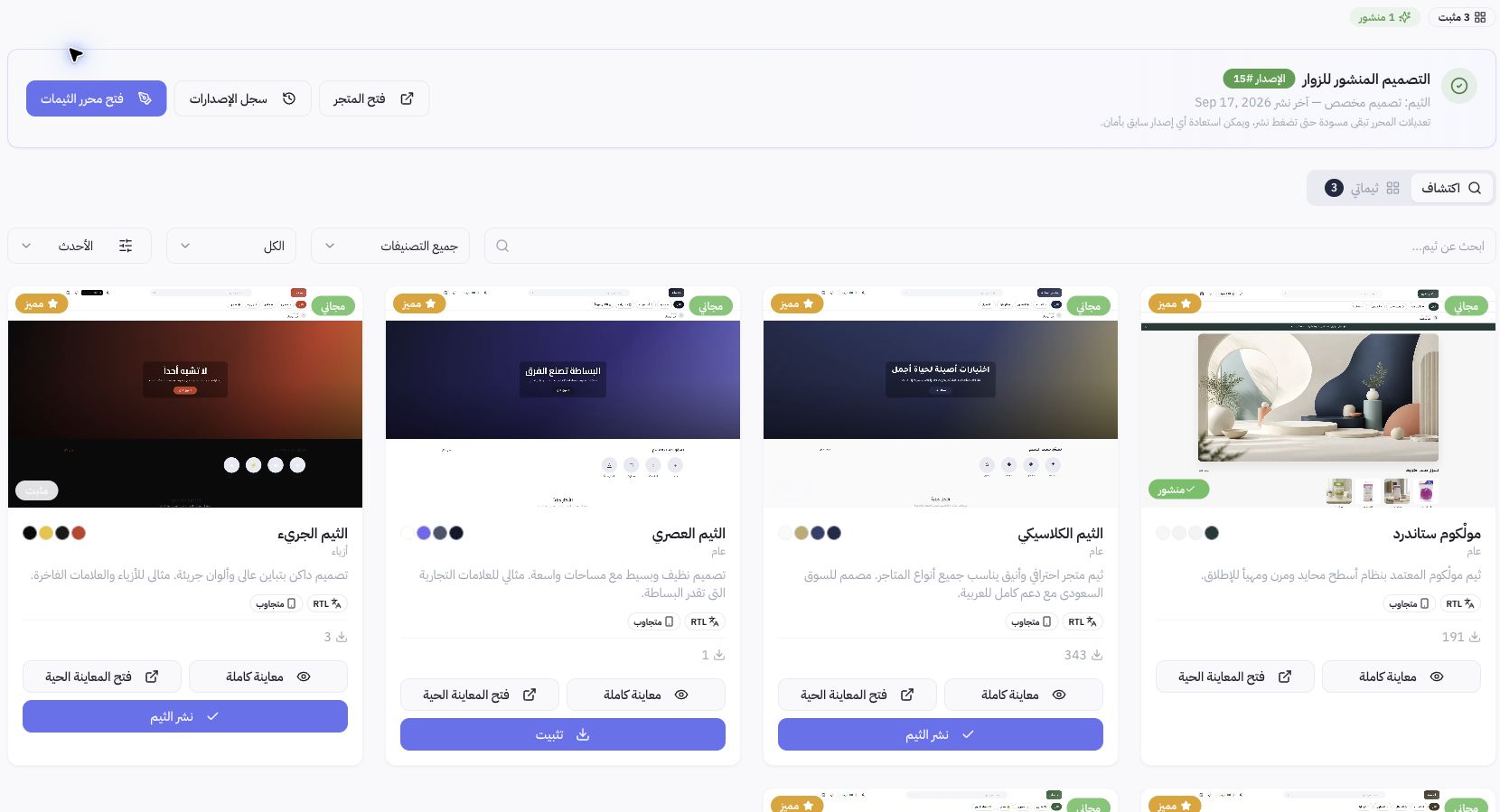
Example from Joolyoo
The screenshot shows one published theme alongside other installed themes. This confirms that having a theme in your library does not mean it is visible to customers. Review the Published Design section and store link to confirm the live version.
How do I review customizations?
Test with real headings and catalog photos rather than relying on placeholder visuals. Check contrast, call-to-action button visibility, Arabic text direction, and translated text expansion. Editor edits remain in draft until published; save your progress before leaving.
What if I need to revert changes?
Open Version History and review the release you want to restore before confirming. Never assume installing another theme is a safe way to revert without checking. Once published, open the live storefront and verify the colors, sections, and visible products.