
What does the Banner Designer create?
Open Banner Designer under the Store section. This workflow produces a single banner from products or images, distinct from the automated layout designer that generates complete storefront sections. Define the message you want shoppers to see and where the banner directs them.
Steps to Create a Banner
- Select items from your catalog, or use the library and file upload.
- Choose 1 to 5 products within the displayed flow.
- Enter your design concept if you want to guide styling.
- Review the usage cost before generation starts.
- Check the preview, then use the saved asset from your Photo Library inside the Theme Editor.
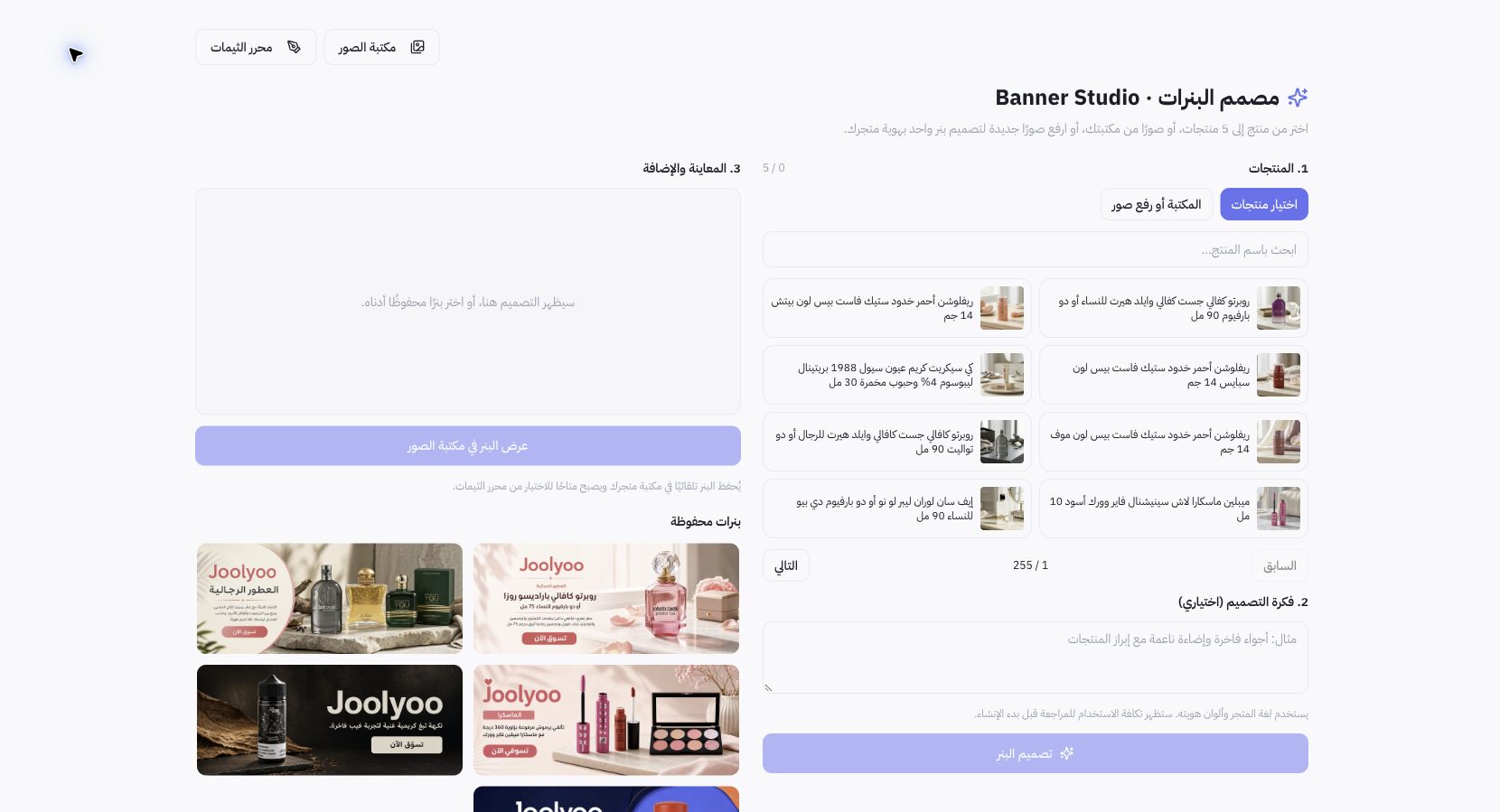
Example from Joolyoo
The page displays perfumes and beauty products ready for selection, alongside saved banners from previous jobs. You can create a banner for an existing fragrance collection rather than running a generic ad that links nowhere. No new banner was generated or applied to Joolyoo during documentation.
How do I review the design?
Verify packaging appearance, copy, language, and any price or promotional tags shown. Never feature an offer or discount that is not configured in your store. Check mobile clarity, and maintain correct aspect ratios instead of cropping essential products or distorting images.
When does it appear to customers?
The designer saves your banner to the library, but you must place it in the editor, verify its link and sizing, then save and publish your theme. Storing a banner in your assets does not automatically add it to your live storefront.