
Before You Begin Translating
Open the Translation Center and select the languages you genuinely need. Enabling a language activates support, but it does not automatically translate all merchant catalog copy. Review the source text first; translating an inaccurate description propagates errors across all languages.
Workflow and Review Steps
- Open Store Translation and review target languages, content scope, and displayed usage.
- Track the task in Translation History rather than starting a duplicate job.
- Open Browse Content and search for the product or page.
- Review translated fields, specifications, and option labels.
- Open the storefront in the target language to confirm text appears in its correct position.
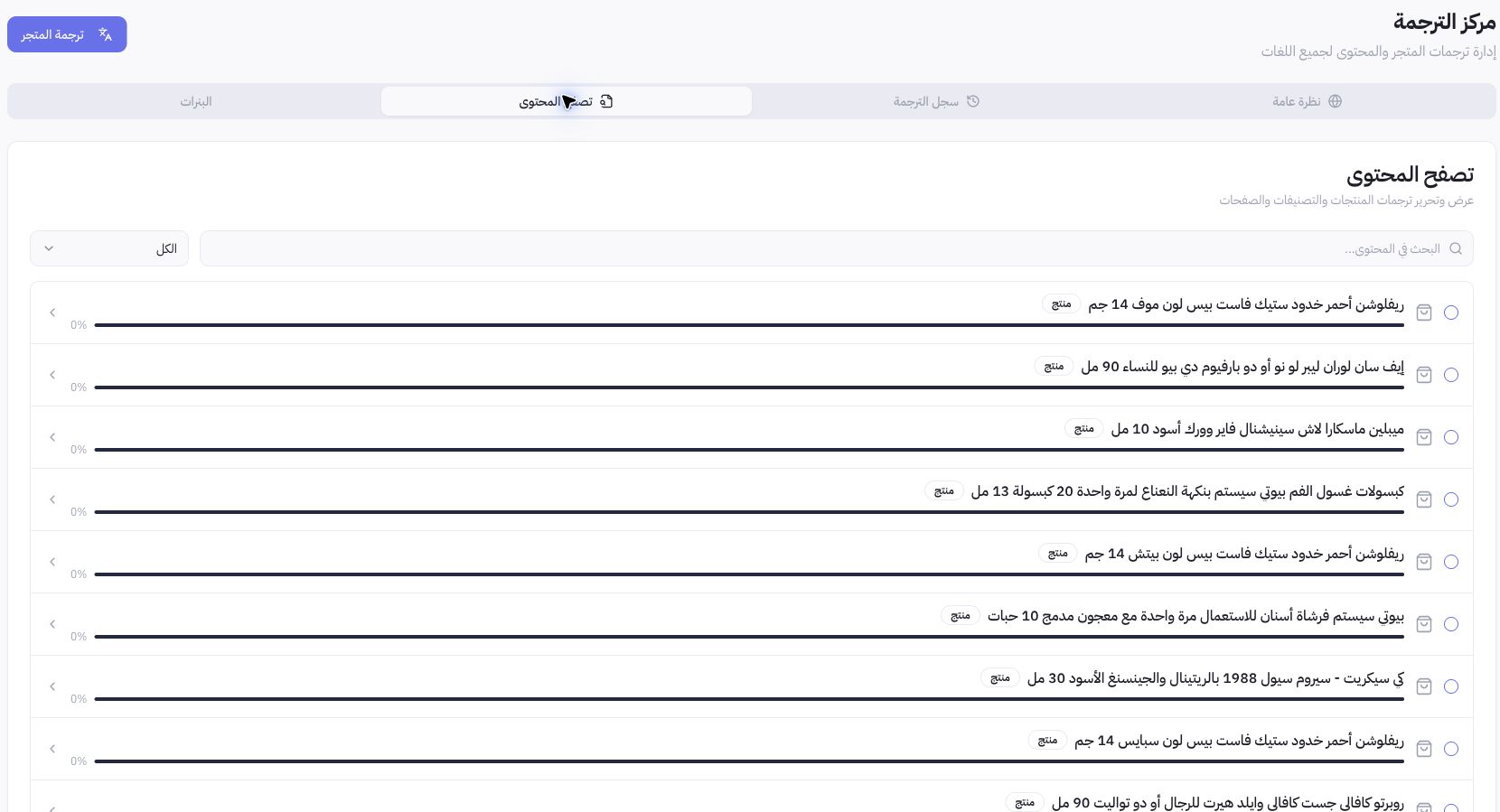
Example from Joolyoo
A summary of a previous translation job was displayed, while browsing content revealed items with incomplete translations. Therefore, a previous job reaching 100% does not mean every product added later is translated. Review the item itself, the required language, and the job date.
How do I handle banner copy?
Translation can cover embedded banner copy depending on your settings and available usage. Images free of promotional text can be reused directly. Open the Banners tab to compare source and translated graphics; preview results require explicit approval before going live.
What about interrupted tasks?
A failed or canceled task may retain already-translated segments. Check your history and resume the existing workflow to finish remaining items instead of reprocessing everything. If a provider's result is inconclusive, review the task before initiating another paid run.