
Where are language settings located?
The Language Settings route opens the Translation Center in the current interface. Start with the Overview tab, which displays the default language and enabled locales. The platform supports 29 languages, but your storefront only displays the ones you activate.
Steps to Select Languages
- Open the Translation Center from Store or Language Settings.
- Review your current default language.
- Select a new default language from the list if needed.
- Enable additional languages whose localized content you can manage.
- Verify save status and inspect your live storefront, then complete any missing field translations.
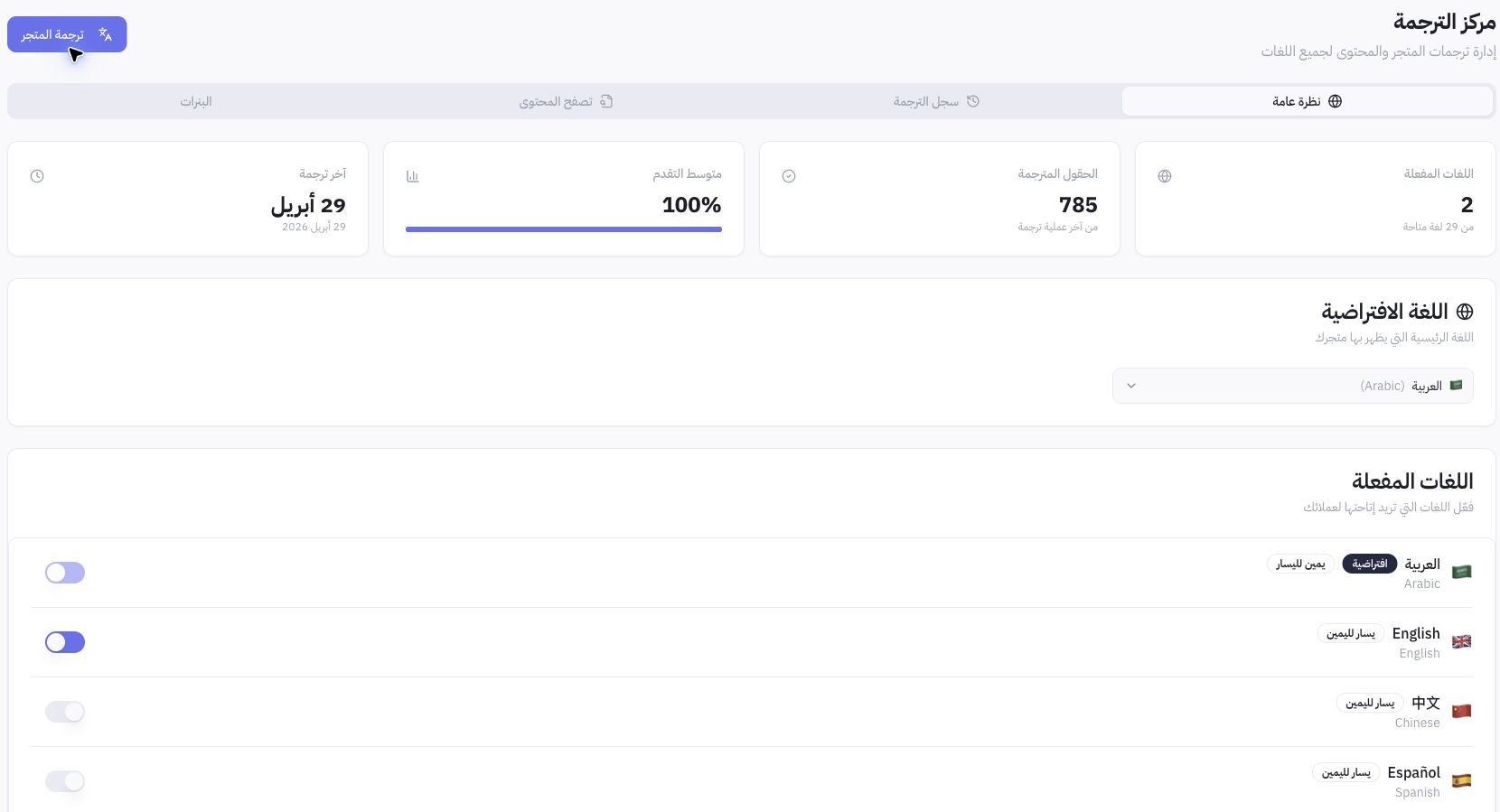
Example from Joolyoo
Arabic was set as the default with English enabled during inspection. This reflects one store's specific configuration; stores in different regions are not required to default to Arabic. The default language shapes the customer storefront experience, whereas dashboard language controls your admin interface.
What is not automated simply by enabling a language?
Enabling a language does not automatically generate missing translations for product descriptions, pages, or banners. Use Browse Content and Translation History to check real coverage. Category titles and design copy still require explicit review in the selected locale.
How do I test the customer experience?
Open your live storefront, switch to the target language, and review the homepage, category pages, product pages, and cart. Check text direction, buttons, spacing, and numbers. If a field remains in the source language, identify the content type, locale, and field when requesting a fix.