
What information is required at the start?
Merchants start with business information, estimated product count, and an editable handle, then upload a logo or submit an asset generation request. Store identity is mandatory, whereas secondary numbers, warehouses, and sales channels follow independent setup paths. Completing account setup does not imply active payment provider or shipping approval.
How do I proceed to products?
- Complete business details, language, and brand identity in the onboarding workflow.
- Review your logo, store icon, and saved request status.
- Navigate to the product intake workflow.
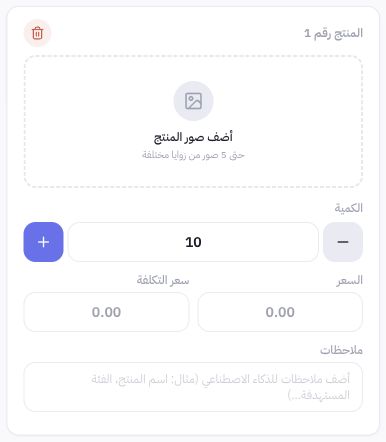
- Group media for each item onto an individual card and set price, cost, and stock quantity.
- Execute processing based on your balance and selected tier, then review the output before marking the product ready.
How should I interpret the estimated count?
The estimated product count tracks onboarding readiness; it is not a rigid quota meant to be filled with dummy items. Saved, unarchived products contribute to progress. Adjust this estimate as your catalog scope evolves instead of duplicating existing items.
How does this relate to launching the storefront?
Completing product intake, brand assets, banners, and item setup precedes theme review and storefront publishing in the launch checklist. Visitors may see a maintenance or setup screen until this phase is finished. The attached screenshot from Joolyoo illustrates the intake workflow; no disposable account was created for onboarding testing.
What if a step stalls?
Open your saved request and verify its status before ordering a new logo or product asset. Navigating away from the page does not cancel an active job. If results are uncertain or welcome credits appear missing, request an audit log review; do not open a duplicate account or attempt repeated payments.