
Choose the right setup flow
Go to Settings and select Domains. The dashboard offers options for a Mollkom subdomain, connecting an existing domain, or purchasing a new one. If you already own a domain, select the connection flow rather than purchasing another. Confirm the store your domain should resolve to.
Steps to connect an existing domain
- Select “Connect an Existing Domain” and click Add Domain.
- Enter your root domain or subdomain accurately without paths.
- Review the DNS configuration and record instructions presented for this domain.
- Apply the required records with your authoritative DNS provider.
- Return to verify and activate, then confirm connection health, SSL status, and primary domain assignment.
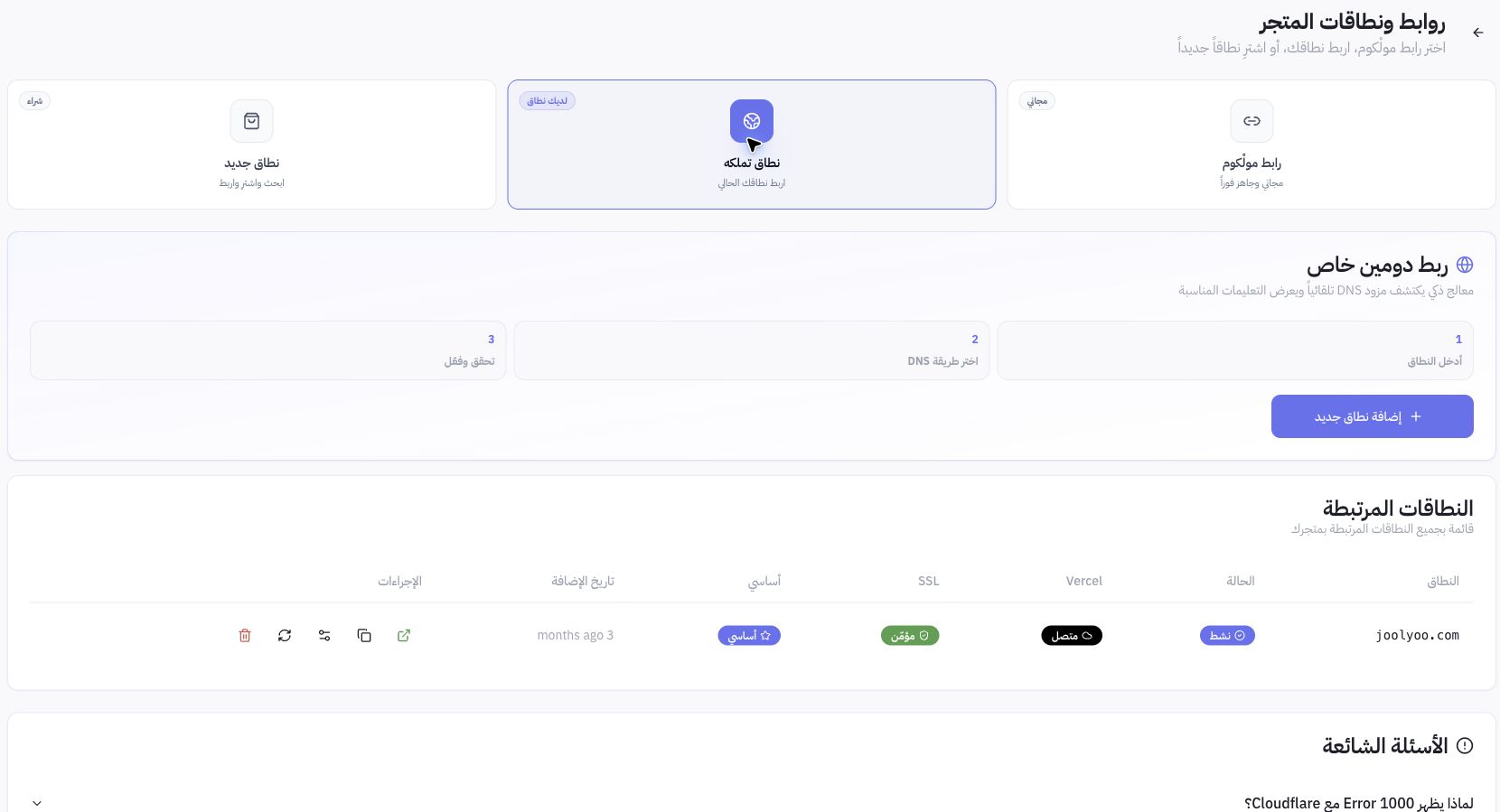
Example from Joolyoo
The panel showed joolyoo.com as active, connected, secured, and designated as the primary domain. These statuses reflected this specific host at inspection time and should not be treated as generic DNS values to copy. Use the unique records provided in your dashboard.
What settings should I preserve during DNS updates?
Audit existing DNS zones before making edits, particularly email records. Never delete MX records or unassociated verification entries. DNS propagation and SSL certificate issuance are separate stages and may not finalize simultaneously.
How do I verify domain setup?
Open your domain via HTTPS, confirm it loads the intended store, and verify primary navigation and locale routing. If Cloudflare, SSL, or ownership errors appear, consult the diagnostic steps or contact support with the domain name and error text without sharing registrar credentials or API keys.