
What is the difference between draft and published?
The Theme Editor provides a visual workspace. Its top bar displays the published release and current draft status, with actions to Save, Publish, View Matching Draft Preview, and Open Live Store. These distinct controls prevent confusing unpublished working edits with the live customer experience.
Steps to Edit a Page
- Choose Home, Product, Category, Cart, or a custom page from the page selector.
- Select a block from the library or pick an existing element in the page tree.
- Adjust content and properties using the active controls.
- Switch between mobile, tablet, and desktop views to verify responsiveness.
- Save your draft and open the matching preview, then publish once your review is complete.
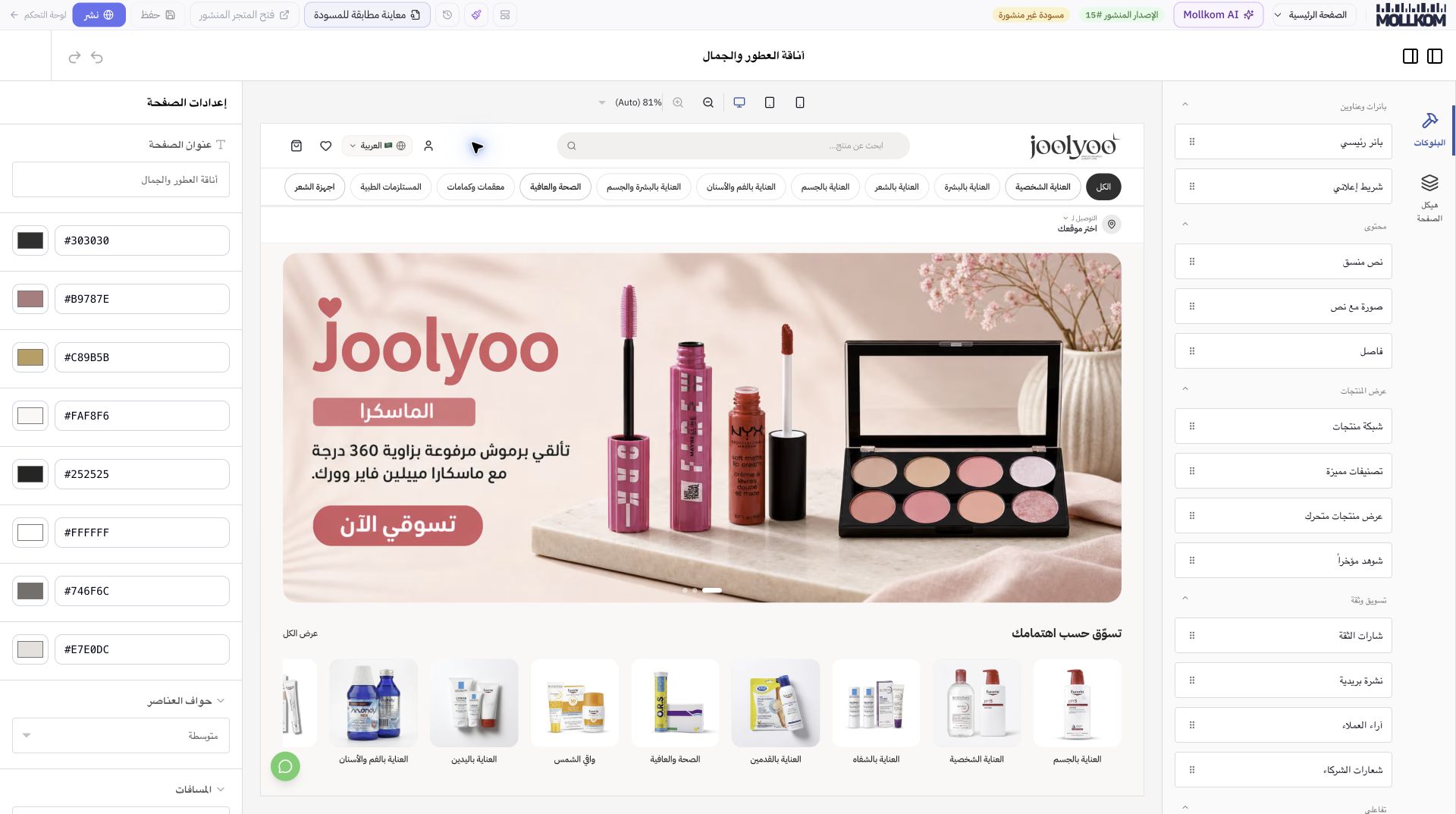
Example from Joolyoo
The screenshot highlights banner blocks, product grids, category lists, text blocks, FAQs, and more. You can test live pages with these elements without modifying your underlying catalog. Neither Save nor Publish was selected during manual documentation.
What should I inspect before publishing?
Check button links, product cards, image assets, and copy across all enabled languages. Maintain image aspect ratios, confirm buy-button clarity, and ensure headline text does not overlap key banner visuals on mobile. A thumbnail preview alone is not enough to evaluate a full-length page.
How do I review an earlier version?
Open Version History from the toolbar and inspect the release you want before restoring it. After publishing, always open the live store to verify the change in production. If the Save button is inactive, there are no new changes; do not hit Publish just to refresh your view.