
Where do I update colors?
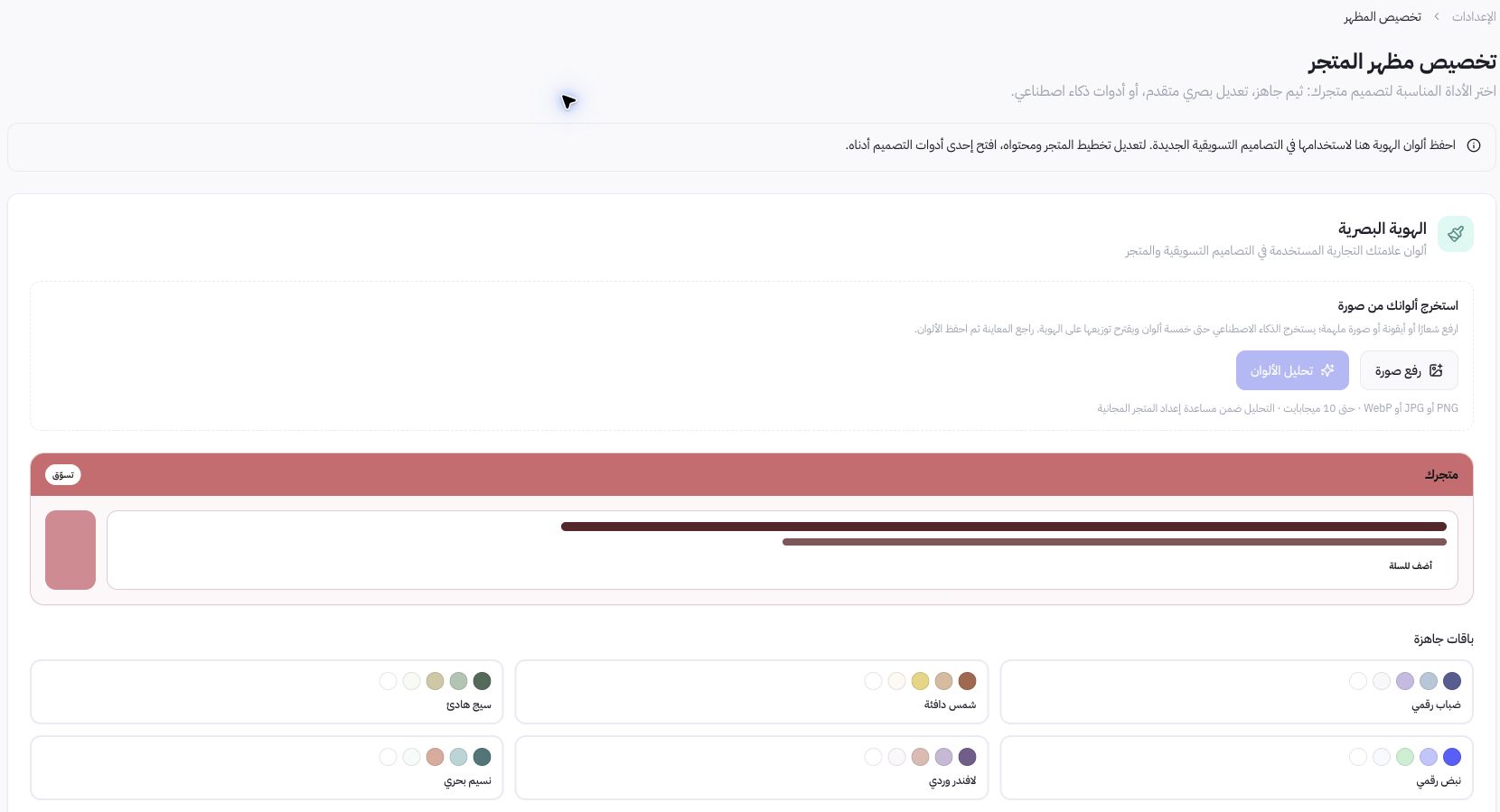
Go to Settings, then select Appearance and Visual Identity. This page configures your color palette and design tooling. Uploading your store logo or editing your store name is handled separately under General Identity; similar labels do not mean they are the same screen.
Steps to Select a Color Palette
- Open Extract Colors from Image if you have an existing logo or visual guide.
- Use PNG, JPG, or WebP formats within the displayed 10 MB limit.
- Review the suggested colors and balance before saving.
- Alternatively, select a curated preset palette or enter manual hex adjustments.
- Review the preview and save your palette using the available save action.
Dashboard Example
Joolyoo displays ready-made palettes such as "Calm Sage" and "Rose Lavender." Choose a palette based on your brand identity and text legibility, not just its name. If your brand color is light, do not assume it will work well as the background for every button or text element.
How do I test my color choices?
Check the contrast between text and background, and ensure primary call-to-actions stand out clearly. Review product images against the selected background surface, and test on mobile devices and in languages with longer text. Saved colors are applied across compatible designs; this does not mean every existing asset is automatically redesigned.
When should I use other design tools?
Open the Theme Store to select a template, use the Editor to customize layouts and sections, or use the Automated Designer to generate designs tailored to your catalog. Saving your visual identity is an independent step from publishing a new storefront version.