
Where do I find customers?
Open Customers from the main menu. The page consolidates search and segments such as returning, single-order, new, and lapsed customers. Use it to understand relationship history while keeping customer data strictly within authorized business tools.
Steps to access a profile
- Search by name, mobile number, or email address.
- Select the relevant segment if the list is extensive.
- Review how results are sorted, such as by last order.
- Open the intended profile and verify it matches the customer.
- Review order history and statuses before tagging them as a repeat buyer or following up on a specific order.
Example of interpreting a segment
The interface identifies recently active customers based on purchases made within the last 90 days and flags a "needs re-engagement" segment. A customer's presence in a follow-up segment does not imply consent to receive marketing messages. Check channel permissions and customer messaging workflows before sending any communications.
How do I interpret purchase metrics?
The page displays recognized purchases after excluding canceled and refunded orders based on platform definitions. Do not equate the number of rows in the order log with recognized purchases without verifying status. A customer record may exist without any completed purchase.
How do I add a customer profile?
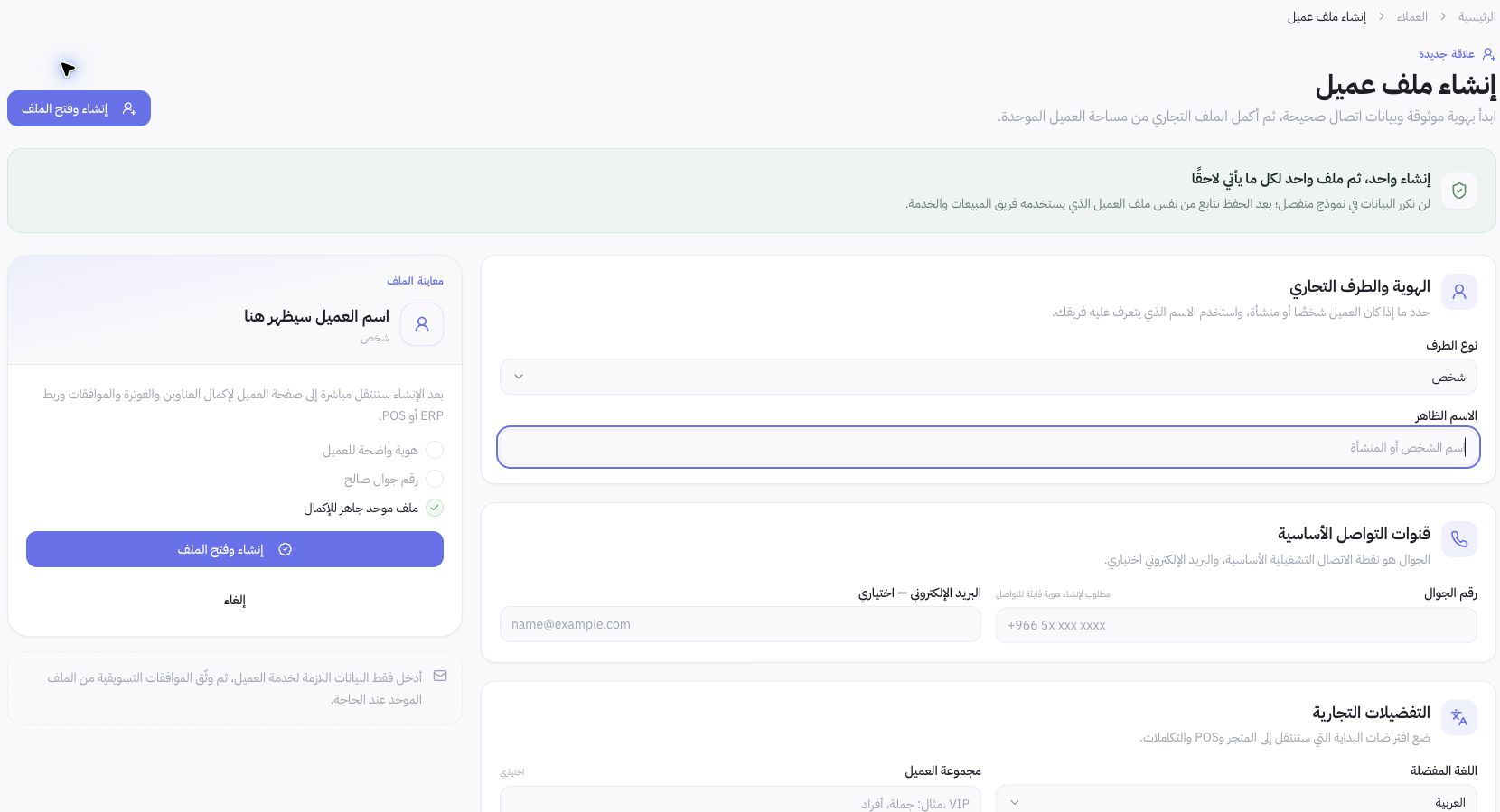
Click Add Customer and wait for the customer profile creation form to open. Select the party type, display name, and mobile number; email is optional. Review the preferred language and customer group, then use Create and Open Profile after verifying the details. Complete addresses, billing, and consents from the unified profile. The image shows the blank form; no customer was created during testing.