
How do I navigate the settings directory?
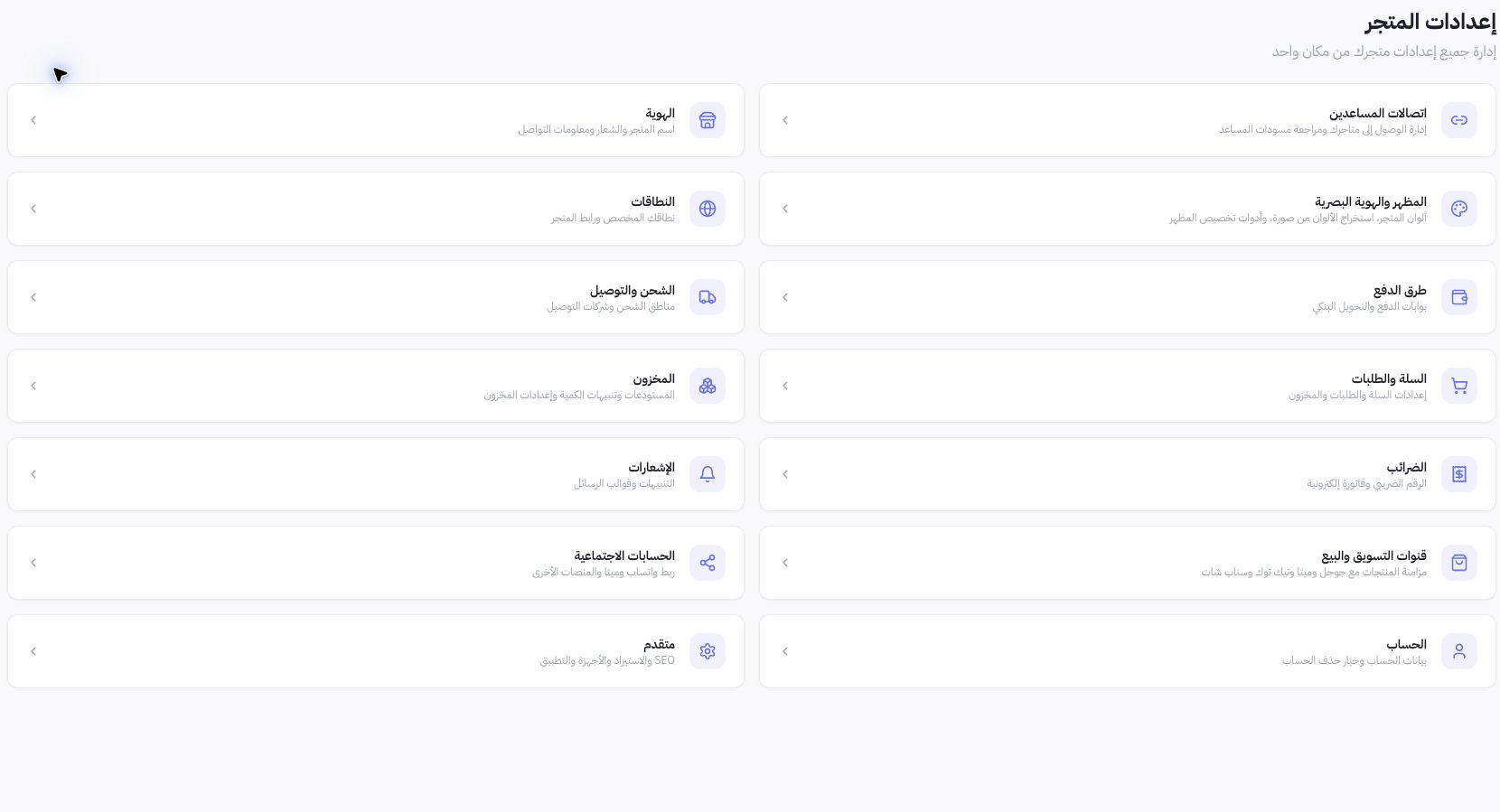
Open Store Settings from the menu. The page links to Identity, Appearance, Domains, Payments, Shipping, Cart & Orders, Inventory, Taxes, Notifications, Channels, and Account. Read the card description before opening it; short titles alone may not reflect full operational scope.
Where do I go based on my task?
- Store name, logo, and customer contacts: Identity.
- Brand colors and design customization: Appearance & Visual Identity.
- Custom URL configuration: Domains.
- Accepting payments: Payment Methods; fulfillment options: Shipping & Delivery.
- Stock alerts: Inventory; checkout validation rules: Cart & Orders.
- Account owner profile: Account; staff permissions: Team from the main navigation.
Avoiding Common Navigation Errors
To update the Joolyoo brand logo, open Identity rather than Appearance. If you need to reconcile a customer transaction, go to Payments under Financials instead of configuring a new gateway. Selecting the correct screen avoids altering functional settings when troubleshooting an isolated record.
How do Settings connect with marketing workflows?
The Connected Accounts card opens linked social platforms, while Sales Channels leads to marketplace and merchant feed configuration. Search Engine Optimization (SEO) resides under Advanced & Search Engines. Account authorization, product catalog syncing, and campaign publishing remain distinct processes even when linked side by side.
What if an expected option is missing?
Confirm you have selected the correct store and hold the required permissions, then verify feature availability for your account plan. Do not rely on legacy URLs or outdated documentation as proof of an active feature. When contacting support, describe the specific setting and intended result rather than sharing unredacted full-screen images.