
Where is team membership managed?
Open Team from the main navigation or Settings. This view lists active staff members, pending invites, and system roles. Access using an Owner account or sufficient administrative permissions; if an action is missing, verify your own role before reporting an issue.
Steps to prepare an invitation
- Open Invite Member.
- Choose individual invite when adding one person.
- Enter the employee's correct email address.
- Select the role and read its permissions description.
- Select only the stores they need, review the details before sending the invitation, and track its status.
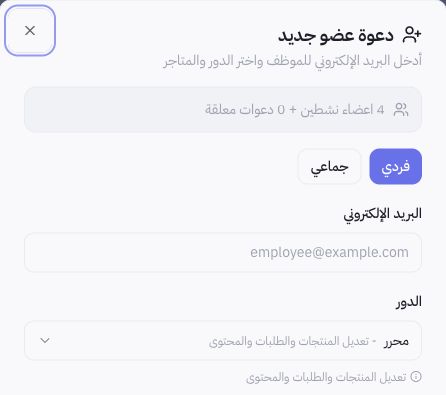
Example from the Form
The form displays the Editor role and a description covering edits to products, orders, and content. Do not select a role based on name alone; review its full scope and verify the employee's actual operational needs. No invitations were sent and no permissions were modified during documentation.
How do I review the current team?
Use search by email or role alongside filters, then verify both the member and assigned store before making changes. A pending invitation is distinct from an active membership. When team responsibilities shift, adjust individual access rather than sharing the owner account among staff.
What if an employee cannot access a section?
Verify that the invitation was accepted, and check the selected store and assigned role. Ask the account owner to review the appropriate permission level; never bypass security controls by sharing session tokens or passwords. If the issue persists, provide support with the section description and role details without credentials.