
Before Scheduling
Navigate to Marketing, then select Calendar & Publishing. Ensure the creative you plan to publish is approved and that the destination account is connected and authorized. Having a planned campaign does not mean all its underlying assets are ready to go live.
How do I navigate the calendar?
- Select your preferred view: Week, Month, or List.
- Navigate to your target date range and confirm the active timezone.
- Filter by asset type and status as needed.
- Click an entry to review its content, destination account, and scheduled time.
- Track the distinctions between planned, queued, published, and review-required items.
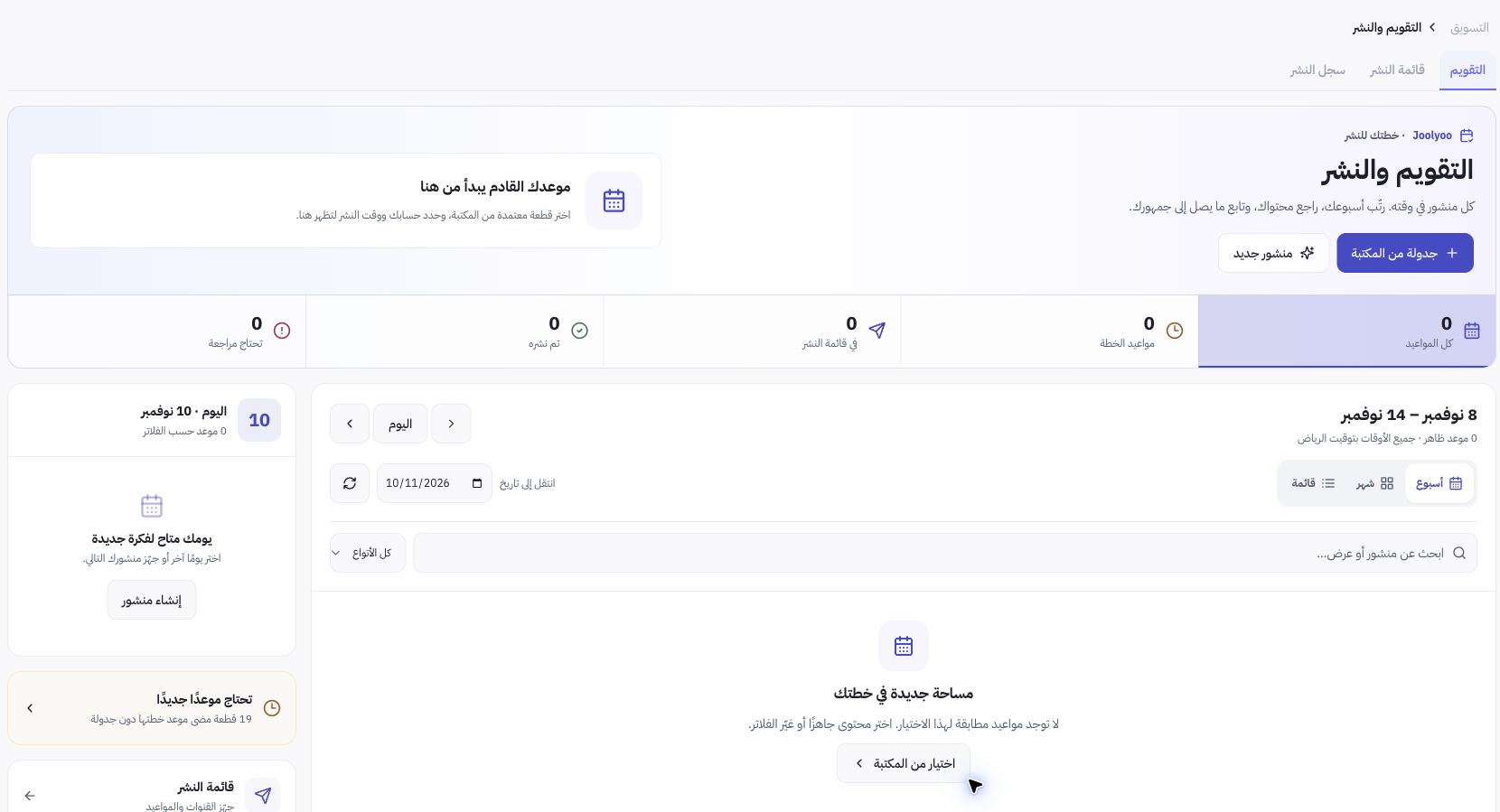
Example from Joolyoo
The screenshot shows an empty week with an alert for older planned items that were never queued for publishing. This is an important distinction: an empty week does not mean you have no assets, and an outdated plan does not mean content was published. Adjust your date range or status filters to locate the desired entry.
How do I avoid scheduling errors?
Double-check the target date, publication hour, and account timezone before confirming a schedule, especially if your team collaborates across different countries. Never infer scheduling times from the interface display language. Additionally, verify that any advertised price or offer remains valid when the post goes live.
How do I confirm successful publication?
Once the scheduled time has passed, open your publishing log to verify the status and open the public live URL if available. An item flagged as requiring review does not become published simply because its scheduled time passed. Resolve any reported issue before rescheduling, and avoid creating duplicate posts while an initial delivery attempt is still pending.