
What does this dashboard display?
Navigate to Marketing, then select Traffic & Insights. This view consolidates real-time store traffic tracked natively within Mollkom with connected Google performance tools. Each data source relies on distinct calculation models and update frequencies, meaning metrics may differ without indicating tracking errors.
How do I review store traffic?
- Confirm the selected store profile and date range.
- Review active visitors, top viewed pages, and recorded browsing events.
- Keep real-time activity views separate from historical daily reports.
- Check linked Google data when needed, confirming setup completion and consent mode status.
- Reference finalized order logs to verify commercial sales.
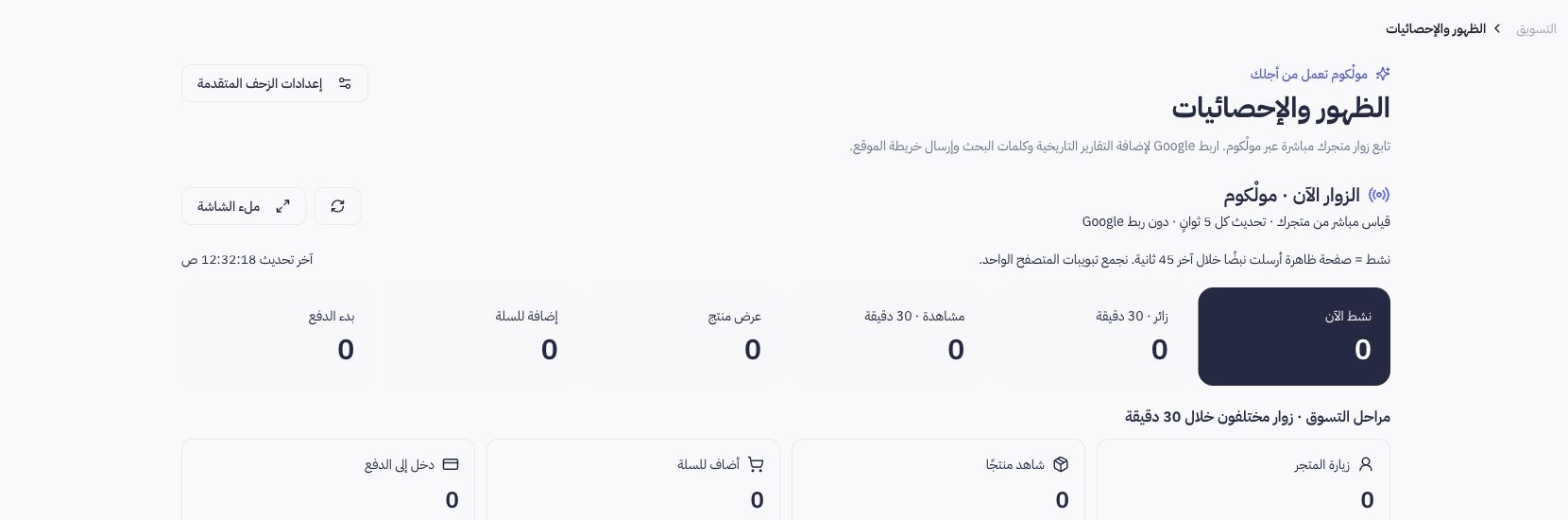
How do I interpret real-time traffic metrics?
Native tracking uses a short sliding activity window with periodic polling; a visitor session ID may represent a single browser instance rather than a unique individual. Product views, cart additions, and reaching checkout are tracked as distinct events. Reaching checkout does not confirm that an order was paid or approved.
Practical example from Joolyoo
The screenshot demonstrates traffic monitoring tools in an operational store. If you observe active visitors that do not appear immediately in Google reports, verify tracking source rules, latency windows, and consent mode settings first. Fresh events in GA4 require processing time and will not align instantaneously with real-time counters.
Does connecting Google Search Console guarantee search visibility?
Connecting Search Console and submitting a sitemap facilitates index tracking, but actual indexing and ranking decisions remain entirely up to search engines. Check individual page status and submitted sitemaps directly; an active integration status does not imply that every product has been indexed or is receiving organic impressions.