
Where is the inbox located?
Go to Customer Messages and open Inbox, or open the Messages tab within Social Publishing. The interface displays connected channels available for your account—such as Instagram, Facebook, WhatsApp, and X—based on your integrations and permissions. The customer inbox is completely separate from the Mollkom Help & Support button.
Steps to review a conversation
- Select the messaging platform.
- Use search or filter by the customer's latest reply.
- Open the intended conversation and read the full context before replying.
- Verify product details, pricing, and live inventory in your catalog.
- Review your text and outgoing channel before sending, then verify delivery status instead of assuming receipt.
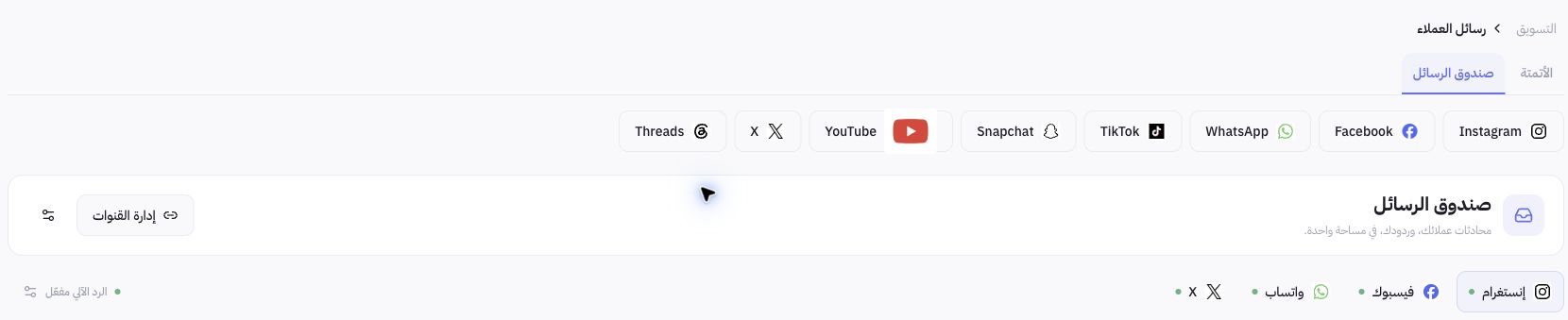
Example from Joolyoo
The inbox displayed active conversations from the linked account. The screenshot was cropped before the customer list to protect privacy; we did not send live test messages or alter automated reply settings. The purpose is to illustrate tool location and navigation.
How do automated replies work?
The interface displays auto-reply status and inbox settings, but actual delivery depends on channel configurations, account eligibility, and published knowledge bases. Do not assume connecting an account enables every message type, or that the store operations assistant is identical to your customer-facing chat assistant.
What if conversations are not appearing?
Check channel integration, account status, and messaging permissions, then refresh the inbox. Data availability may vary across providers. If a message delivery state is inconclusive, verify before re-sending, and share error logs and references with support without pasting unnecessary private data.