
What is the difference between the Assistant and Technical Support?
Mollkom Assistant inside the dashboard is built to execute operational tasks across your store. Technical Support explains platform features and resolves system issues. Opening a support chat does not authorize price or stock modifications; execution depends on available tools, account permissions, and explicit merchant commands.
How do I write an actionable prompt?
- Confirm the active store and open the Assistant.
- Start a new task or continue an existing session.
- Clearly specify the target product or record.
- State the desired action, required values, and any necessary constraints.
- Review the output along with task or operation IDs, then verify saved records before running further commands.
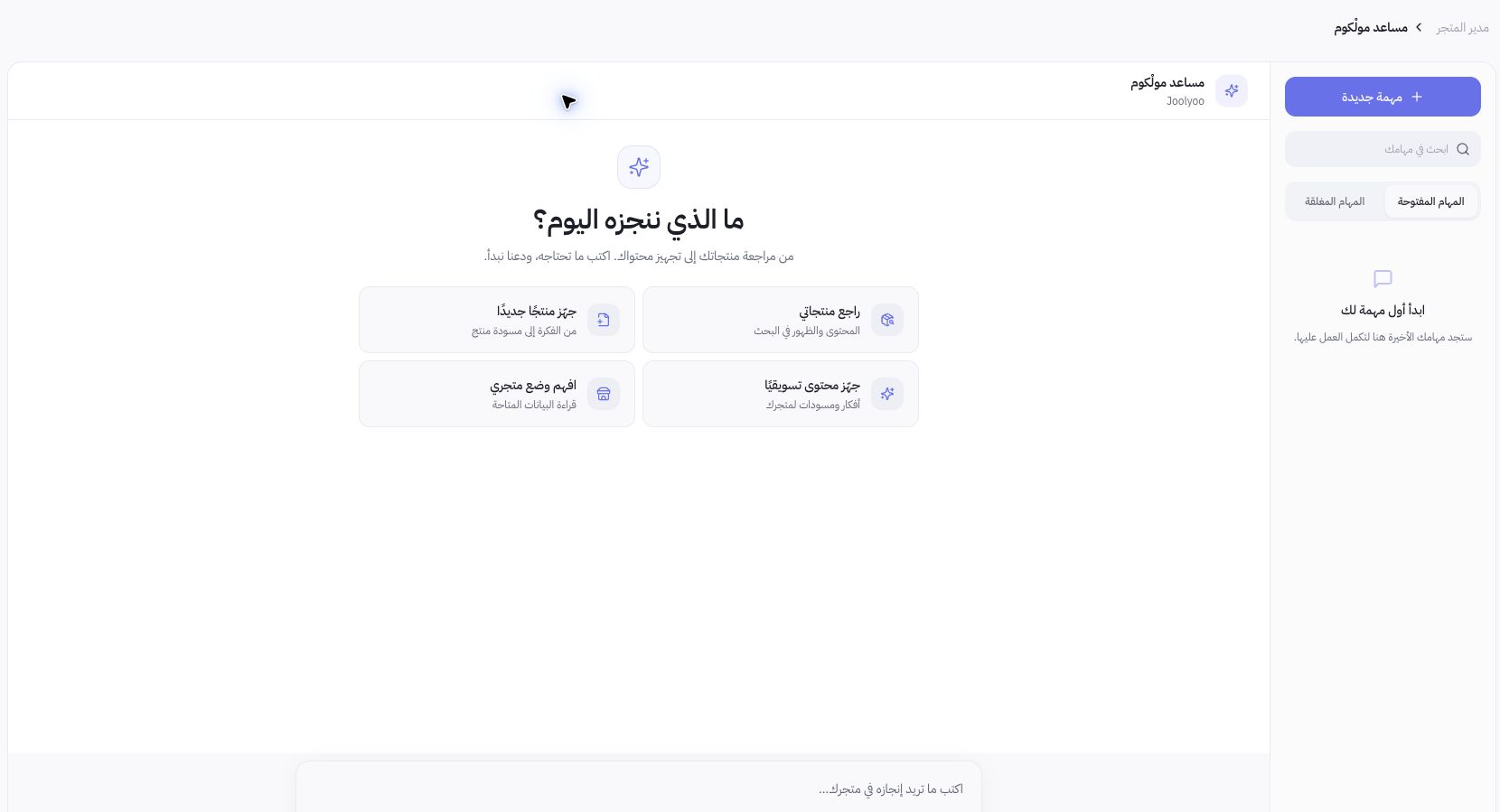
Example of clear task phrasing
You can request a review of a specific product description or update its selling price to a definite value when editing capabilities are active. Distinguish between retail price, compare-at price, and cost price. Avoid ambiguous requests like "change the price" if the product has an active discount that obscures the intended field.
How do I handle inventory and product imagery?
Quantity adjustments require an existing inventory record in the target warehouse when mandated by the tool. Rejecting a missing record does not create it automatically. Generating products from images relies on saved intake jobs; receiving the prompt or queuing the task does not mean the catalog listing or imagery is finalized.
What should I do if a task fails?
Read the error reason before resubmitting. A service interruption from an AI provider does not mean your merchant credit balance is exhausted. If the output status is unresolved, verify records in your dashboard before repeating actions that could modify data or consume balance units. Never share API keys or credentials inside a prompt.