
Start with the specific issue message, then match product data with its public page before requesting a review. Learn the difference between sync, approval, and serving, with an actual example from the Mollkom dashboard.
What Is the Short Answer?
A product disapproval means there is an issue that needs resolution according to the diagnostics shown in Google Merchant Center. It may relate to data, the product page, or a broader issue with the account. Start with the affected product, message, country, and destination, and do not assume that resubmitting the catalog or running an ad resolves the issue.
Is Every Synced Product Approved or Serving in Search?
No. The presence of the product in Mollkom, sending it to Google, its approval, serving, being clicked, and customer purchase are distinct stages. Catalog scope may also differ according to language, country, status, and last sync. Separate these stages in your report so that submitted products are not counted as visits or orders.
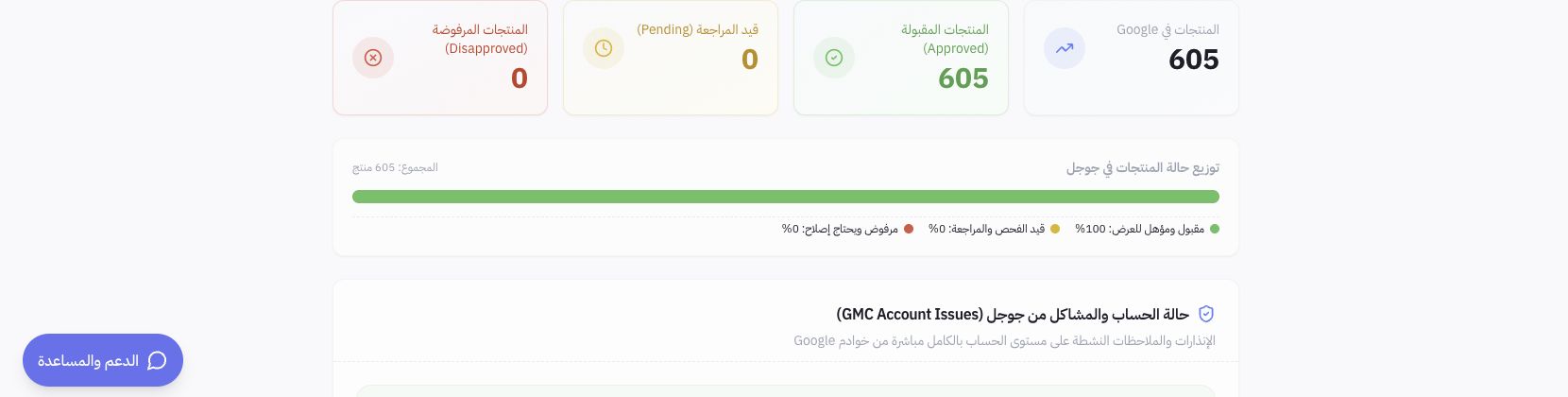
In the documented review of Joolyoo, 605 products appeared approved in the last check displayed. The number describes the status of that catalog at the time of the check, not the count of all store products or its sales. The screenshot does not prove resolution of a previous disapproval, nor does it mean that other accounts will get the same result.
How Do You Reach the Cause Inside Mollkom?
- Open sales channels and gateways, then the Google Merchant Center card, and verify the linked store and account.
- Review diagnostics, account issues, and the date of the last check, then open the product list.
- Select the product and status, then record the issue text alongside the country or destination it relates to.
- Open the public product link to compare actual data, then address the responsible field or setting.
- Follow the review procedure that Google presents after correction, and monitor for status changes rather than repeating requests without modification.
The Help Center guide linked below shows where these screens are located. If you need details not shown in the Mollkom dashboard, open diagnostics in the Merchant Center account itself.
What is the first thing you check in price, availability, and URL?
Compare the price, currency, and availability in the submitted data with the product page and intended variant. If an offer changes or stock runs out, review the source that resends the data so the discrepancy does not return after a manual edit. Google guidelines state that price or availability mismatches between source and page may lead to disapproval.
Google reference for price mismatch issue
Google reference for availability mismatch issue
Open the link on mobile and from a visitor window. It must reach the correct product, not the homepage or an error page. Review the image, title, and size or color, and request supplier data when identifiers are missing; do not invent a barcode to silence a validation message.
Official product data specification from Google
What does a practical check without guessing look like?
Educational example: If the product message states that availability is mismatched, record what the page displays, what the sync sent, and their timestamps. If the page says "unavailable" and the source says available, correct the availability source and review the sync result. This is a diagnostic scenario, not an incident claimed to have occurred or been resolved in Joolyoo.
If the issue is at the account level, read its specific requirements. Editing a product title will not automatically resolve a policy or business information issue. You may need to review shipping, returns, or store information according to the actual message, then submit what Google requests through the official path.
When is the resolution considered successful?
After the new product status appears in the relevant destination and the specific issue clears, keep the review date and reason for modification. Then track impressions, clicks, and orders separately. Approval does not guarantee ranking or sales, and syncing the catalog does not launch a paid campaign; ad management and budget remain an independent track.
How Do You Get Started in Mollkom?
Prepare accurate product data and pages that a visitor can open, then review integration eligibility and your catalog status. Mollkom helps you link product preparation and marketing with order and inventory tracking, while reviewing each channel's requirements prior to adoption.