
What does this page control?
Verify your active store, then navigate to Settings > Inventory. This page consolidates low-stock alerts, out-of-stock product behavior, backorders/overselling permissions, and quantity display rules. These settings govern behavioral logic; entering product quantities or recording warehouse movements is handled within their dedicated operational workflows. Note that a visible stock tracking toggle does not necessarily mean it can be changed—the global toggle was disabled during review.
How do I set up alerts and out-of-stock handling?
- Turn on low-stock notifications if you want alerts.
- Set the threshold quantity that triggers the notification.
- Choose your out-of-stock behavior: display the item as unavailable, hide it from the storefront, or permit backorders based on available options.
- Review your overselling and stock display options, then save your changes.
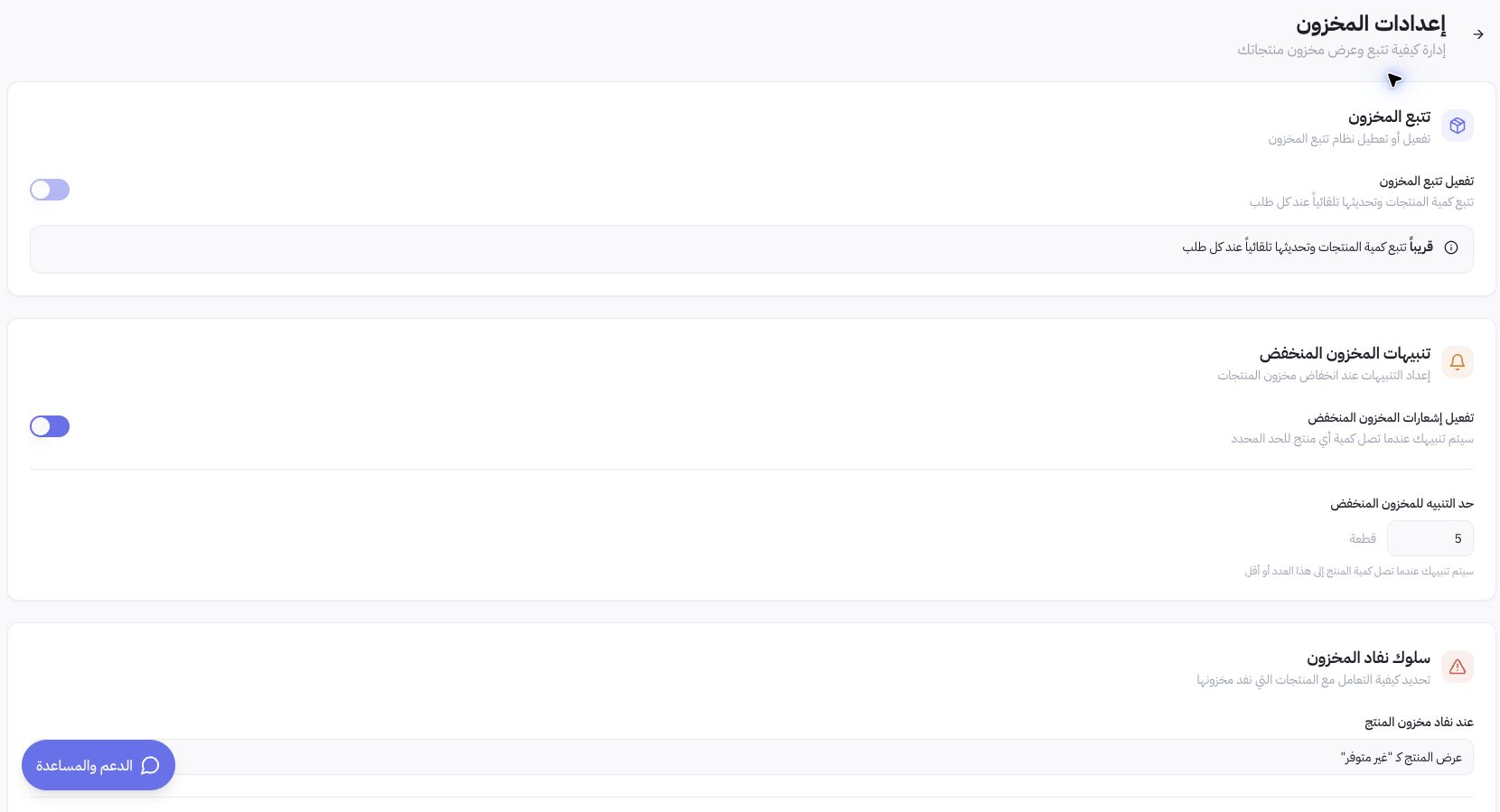
Example from live settings
The alert threshold in Joolyoo was set to 5 units. This is an example of a saved setting, not a universal rule for every business. If an item has a longer replenishment lead time, set a threshold aligned with its sales velocity and delivery cycle. Allowing orders when out of stock requires a reliable fulfillment timeline; never enter dummy quantities as a temporary fix.
How do I choose a fulfillment warehouse?
Fulfillment rules offer routing strategies like Priority, Nearest Location, or Highest Stock. Selecting a strategy applies the choice immediately in the current interface, unlike fields that require clicking Save. Review your warehouse addresses and available stock counts before changing it.
Why isn't an alert showing, or why can't I sell an item?
Check the product's quantity in the assigned warehouse, review your notification channels, and verify product status alongside your out-of-stock policy. A global setting alone cannot reconstruct missing inventory records or guarantee mobile alert delivery. Keep the product name, warehouse details, and observed behavior handy when contacting support.