
Before adding a warehouse
Identify the physical facility where inventory will be held and decide on an internal name that clearly distinguishes it from other locations. Go to Operations > Warehouses. The overview presents your active warehouses, in-progress transfers, physical counts, and stock alerts, with direct access to the full warehouse list.
Steps to add a warehouse
- Click Add Warehouse, then open the creation form from the list.
- Enter the name, country, and city, and pinpoint the exact location on the map; selecting a city alone is not enough.
- Review location type, facility code, address details, and manager contact info as needed.
- Set the priority and operational status, verify your details, and save. Lower numeric values represent higher priority in this field.
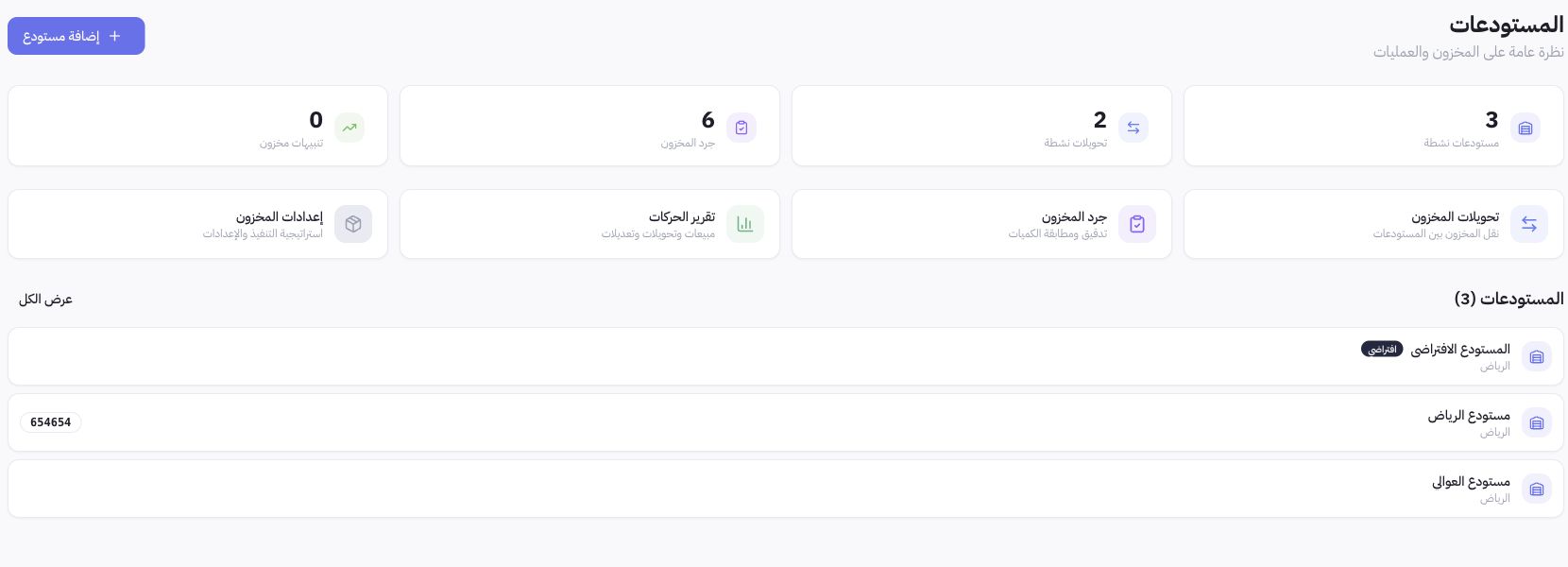
Example from Joolyoo
The screen shows a primary default warehouse alongside secondary facilities in Riyadh. Operating multiple warehouses organizes stock across separate physical sites, but it does not duplicate stock quantities across locations automatically. Use descriptive names reflecting the branch or district, and ensure inventory entries are assigned to the correct facility.
Where do I track transfers and stock counts?
Open Stock Transfers to track inter-location movements, Stocktaking to audit physical counts, and Movement Reports to analyze balance adjustments. These serve distinct operational functions: drafting a transfer does not confirm physical receipt, and initiating a stock count does not post variance adjustments. Always verify operational statuses before reconciling final balances.
How do I verify the setup after saving?
Return to the warehouse list to confirm the facility name, active status, and map location, then inspect product stock assigned to that facility. Do not switch your default warehouse or disable an active facility merely to reorganize list views. If unexplained discrepancies appear, trace stock history and transaction references before posting manual adjustments.