
Build a unified catalog that distinguishes products, variants, and selling units, then connect POS directly to central inventory and orders to validate barcode scanning, receipt printing, and real-time stock deductions. Mollkom provides native Android POS and inventory applications, including integrated barcode scanning and printing support on compatible SUNMI hardware.
What does Mollkom's live POS interface display?
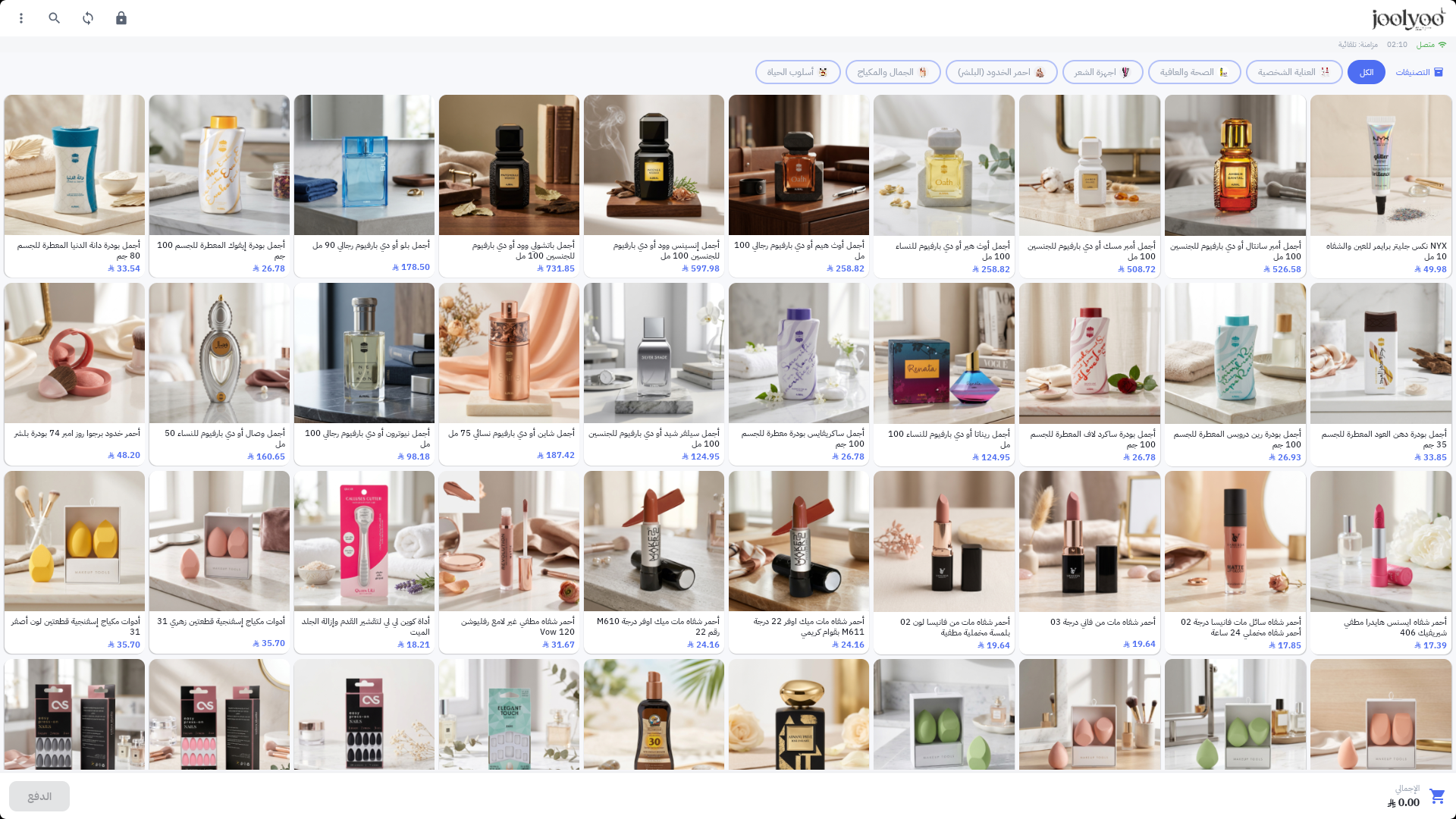
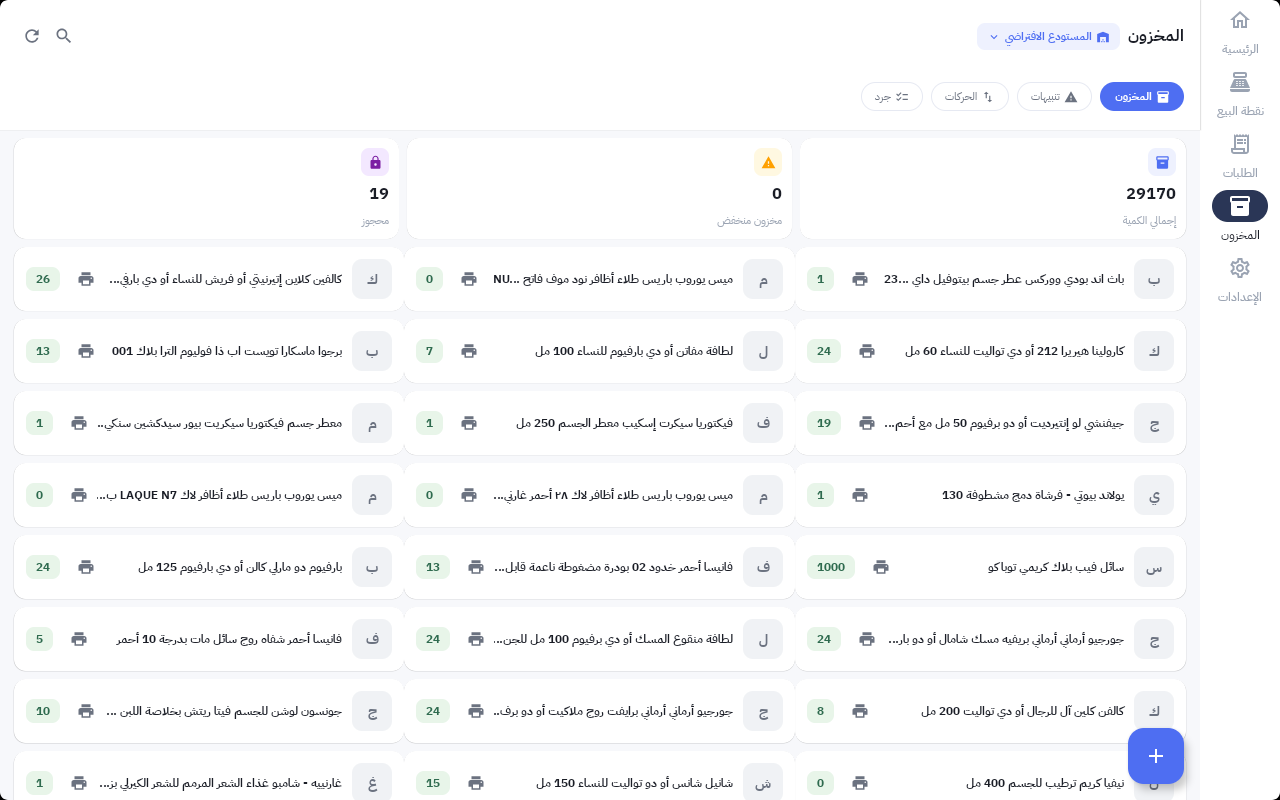
The published Mollkom POS screenshot displays the Joolyoo catalog with its product images, pricing, and categories, alongside the cart total and checkout button. The inventory screenshot illustrates warehouse selection, as well as stock, alert, movement, and audit tabs. These are actual platform screens, not conceptual mockups depicting hypothetical features.
To verify the integration, select a single SKU with a known barcode and unit of measure, and record its quantity in the warehouse assigned to that POS station. Search for it by title, then scan its barcode; both methods must retrieve the exact same SKU. Confirm the variant, quantity, and price prior to approving the sale. Execute the test within your business's approved test protocols, then verify the generated order, receipt, inventory movement record, and the quantity displayed across the online storefront channel.
- If a different SKU appears upon scanning, review your barcode and variant mappings before using the register in production.
- If the sale completes without recording an inventory movement, verify the assigned warehouse, synchronization status, and audit log; do not manually adjust stock levels merely to conceal the discrepancy.
- Test returns as an independent flow; a completed checkout does not confirm that stock replenishment on return is properly configured.
The screenshots reflect the user interface exactly as documented at the time of capture; they do not represent a new live transaction conducted for this guide, nor do they prove active card payment capture. Hardware, printer, scanner, and payment gateway compatibility must be reviewed against your specific operational setup.
What data should you standardize before launching POS operations?
Standardize product titles, pricing, variants, barcodes, categories, and units of measure. Staff must know whether a scan represents a single piece or a multipack, and two sizes must never share an identifier that prevents differentiation. Designate the POS register, the warehouse from which stock will be deducted, and appropriate user permissions.
The objective is for all sales channels to operate from a single source of truth for products and orders. Simply syncing a product list from your online store to a POS terminal is insufficient if stock quantities or variants remain isolated without unambiguous rules.
How do you select the right hardware for scanning and printing?
Start with your operational environment: mobile handhelds for aisle picking versus fixed countertop terminals, receipt paper width, and barcode scanning methods. Check the specific SUNMI hardware configuration part number, as printer components, scanners, memory, and accessories vary across models within the same line.
The presence of an NFC module does not automatically mean payment card capture is enabled. Card payment acquiring and setup require separate configuration depending on hardware, geographic region, and merchant services provider. Likewise, never assume full sales cycles function offline; validate connection handling and synchronization behavior in your real-world setup.
How should you test the end-to-end sales cycle before going live?
Search for the item by name, then scan its barcode; choose the variant and quantity, and verify line items, discounts, and customer details in the cart. Execute an approved test transaction and audit the receipt, the order record, and the stock movement log. Test return flows, scan errors, and connection drops using standard workflows rather than relying solely on UI displays.
Example scenario: An item has 2 units remaining. After completing a POS checkout for 1 unit, verify the updated stock available on your storefront. Next, place an online test order and cancel it to verify that the unit returns to available inventory in line with your reservation rules. Document all variances before rolling out a wider catalog.
How do you install the Mollkom POS app?
The POS documentation confirms that Mollkom PDA is available in the SUNMI App Store for supported devices. Search for it directly on your compatible hardware, log in with your merchant credentials, and assign the store and POS terminal. If the app is not listed, contact our support team with your device model and region instead of installing unverified packages.
The platform centralizes product management, marketing execution, customer service, order fulfillment, and delivery operations. You can begin with core POS and inventory control, then activate additional commerce modules as your business scales.
What key metrics should you track post-launch?
Monitor inventory count discrepancies, returns, unmapped barcodes, and order line discrepancies. Ensure staff understand standard correction workflows and who holds approval authorization. Sustainable channel integration relies on disciplined data management and event tracking, not just hardware and software.
Consult the current hardware documentation before acquiring equipment; confirmed application support and build compatibility are far more critical than model series names alone.
Related questions for your next step
App & Hardware Setup Guide
What is the best next step?
Establish a unified catalog across your digital storefront and retail POS. Use the workflow above to validate your data and configuration, then identify the operational plan suited to your business.
Explore the solution on Mollkom · Unify your catalog across online sales and POS
